The tracks that you record with myTracks on your iOS device are also contained in an iTunes backup. If you ever need to extract tracks from an iTunes backup, here are instructions on how to do that:
- First you need a tool to extract the data from the backup. iTunes itself does not provide this functionality. The tool that I use is iBackup Viewer. There is a free and a pro version of iBackup Viewer. The free version is sufficient to extract the tracks (in case your iTunes backup is not encrypted). If it is encrypted you need the pro version.
- Start the tool and open the backup of your iOS device, navigate to the list of applications and select myTracks (the name may be shown as mytracks4iphoneos.app or mytracks4ios.app).
- Now you will see the list of files as shown in the following screenshot:
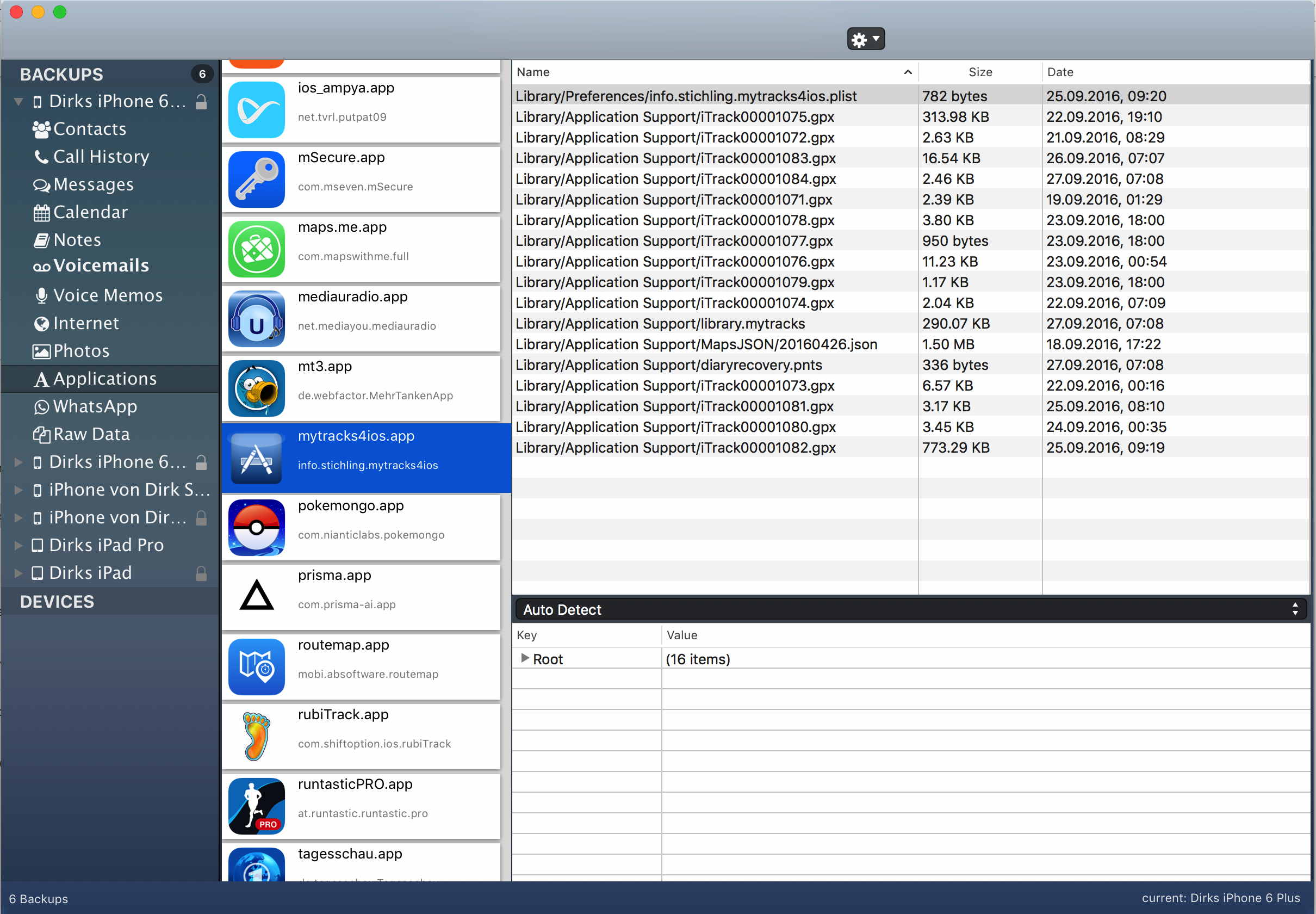
- Select all files with the extensions .gpx and .pnts (in case there are any).
- Export the selected files to your hard drive (click the button with the gear symbol).
- The GPX files are the regular tracks of your track library.
- The PNTS files are recovery files of running track recordings. You cannot convert these files to GPX files directly. Please send these files to my support address and I will convert the files to GPX.
Die Tracks, die Sie mit myTracks auf Ihrem iOS-Gerät aufzeichnen, sind auch in einem iTunes-Backup enthalten. Wenn Sie jemals Tracks aus einem iTunes-Backup extrahieren müssen, finden Sie hier Anleitungen dazu:
- Zunächst benötigen Sie ein Tool, um die Daten aus dem Backup zu extrahieren. iTunes selbst bietet diese Funktionalität nicht an. Das Tool, das ich verwende, ist iBackup Viewer. Es gibt eine kostenlose und eine Pro-Version von iBackup Viewer. Die kostenlose Version reicht aus, um die Tracks zu extrahieren (falls Ihr iTunes-Backup nicht verschlüsselt ist). Wenn es verschlüsselt ist, benötigen Sie die Pro-Version.
- Starten Sie das Tool und öffnen Sie das Backup Ihres iOS-Geräts, navigieren Sie zur Liste der Anwendungen und wählen Sie myTracks aus (der Name kann als mytracks4iphoneos.app oder mytracks4ios.app angezeigt werden).
- Jetzt sehen Sie die Liste der Dateien wie im folgenden Screenshot gezeigt:

- Wählen Sie alle Dateien mit den Erweiterungen .gpx und .pnts aus (falls vorhanden).
- Exportieren Sie die ausgewählten Dateien auf Ihre Festplatte (klicken Sie auf die Schaltfläche mit dem Zahnradsymbol).
- Die GPX-Dateien sind die regulären Tracks Ihrer Track-Bibliothek.
- Die PNTS-Dateien sind Wiederherstellungsdateien laufender Track-Aufzeichnungen. Sie können diese Dateien nicht direkt in GPX-Dateien konvertieren. Bitte senden Sie diese Dateien an meine Support-Adresse und ich konvertiere die Dateien in GPX.