Extended Geotagging (Pool of Photos)
Besides the 1-Click Geotagging there is another geotagging mode available in myTracks. The workflow looks different. The photos are not automatically synchronized with the tracks but they are put into a pool first. Then you have the full control over time zone, time correction, etc. For each single photo you can decide how the geotagging has to be performed (previous track point, next track point, interpolation, etc.).
In the preferences dialog on page General please select Extended assignment using pool of photos for Geotagging Mode if you want to use the extended geotagging mode. After importing photos the pool of photos looks like that:
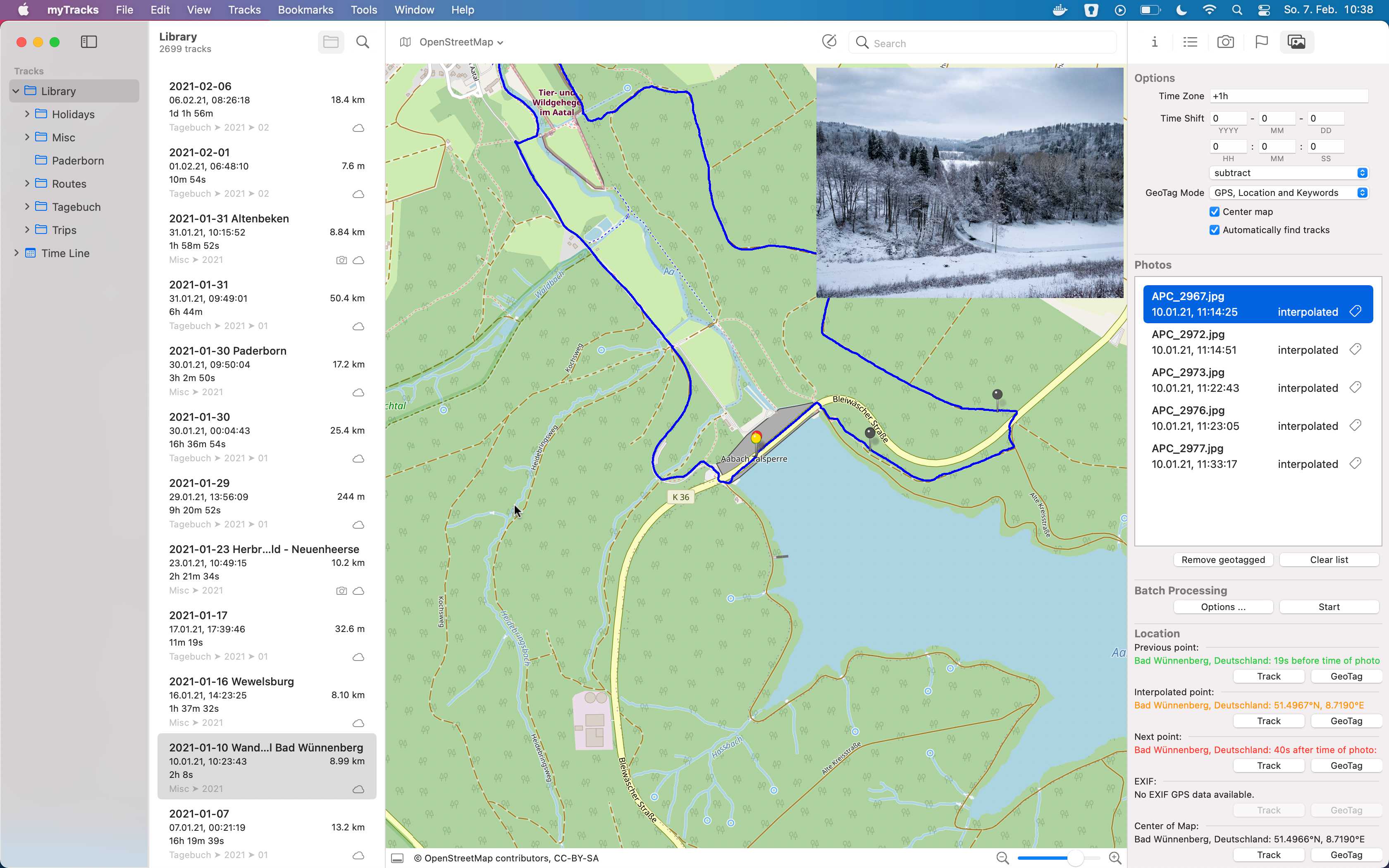
You can change the time zone of the photos in the upper section and you can specify a time correction in the line below if the clock of your camera has not been set correctly for example.
A list of all imported photos is shown in the Photos section. Each entry in the list contains the filename and also the corrected timestamp of the photo.
When you select a photo the following steps are performed:
- A preview of the photo is shown in the upper right area of the map view.
- If Automatically find tracks is enabled myTracks searches for a track that matches the timestamp of the photo. But myTracks will only search within the list of tracks that is currently visible in the track list. So if you want to let myTracks search within all your tracks you have to select the Library in the side bar and you also have to enable Include Subfolders. If there is a matching track it is selected in the track list and shown on the map. Alternatively you can also manually open the corresponding track for your photos.
- Various colored pins are now visible on the map:
- The green pin shows the track point that is time-wise before the timestamp of the photo.
- The red pin shows the track point that is time-wise after the timestamp of the photo.
- The yellow pin is an interpolated location calculated based on red and green locations.
- You may see a blue pin if the photo already contains EXIF location information.
- You may also see many other grey pins. That are the locations that will be set by the batch mode as explained in a later section.
In the Location section you find subsections for previous point, interpolated point, next point, EXIF and center of map. The first four subsections correlate with the four colored pins mentioned before.
Each subsection contains two buttons:
- Track: The photo will be removed from the pool and assigned to the selected track. A new track point will be added to the track if you select Interpolate or EXIF. In this step no EXIF tags are written to the files but the photos are only assigned to tracks. You have to use the geotagging button in the photo list (not in the pool window) to finally write the EXIF tags to the files.
- GeoTag: The photo will be removed from the pool and the location information will be directly written to the photo file. Use the GeoTag Mode option in the upper part of the pool of photos to specify which EXIF tags are written to the files.
The following screencast (no audio) shows how to work with the pool of photos:
Batch Processing
Even if you work with the pool of photos you can use an automatic mode (batch processing). First, you have to specify the rules for the batch processing. Click the Options... button to open the following dialog:
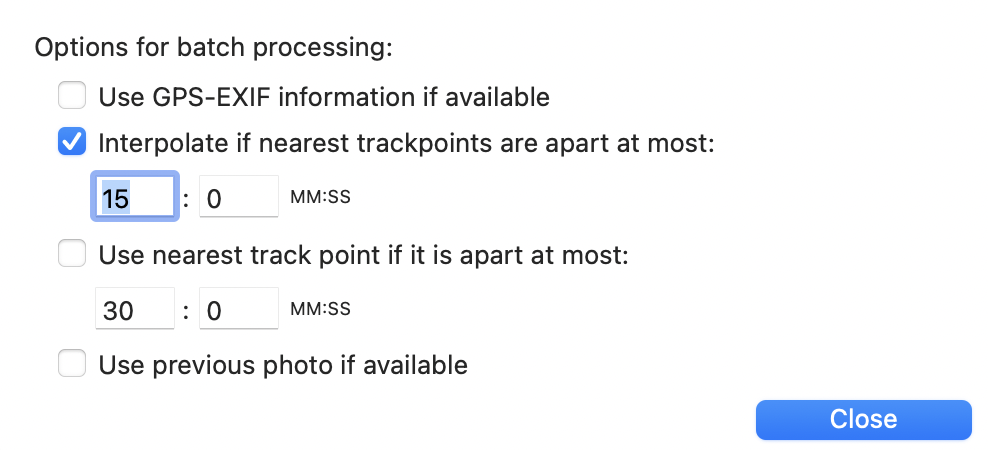
Here you can define when and how a photo is assigned to a track point. For example, you can specify that a photo should be assigned to the closest tracking point if the time span to this tracking point is below the defined limit value.
The list of photos shows batch information as shown in the following screenshot:

If the batch symbol is visible (as it is the case in the screenshot) this photo will be processed by the batch mode. To the left of the batch symbol you see how the location will be calculated (interpolated in the example).
Click the Start button to perform the batch processing. After clicking the button a dialog will appear asking for the batch mode. Now you can decide whether the photos will be assigned to the track (click Track) or the EXIF tags are written directly to the files (click GeoTag).
The following screencast (no audio) shows the automatic assignment using the pool of photos:
Time Correction
Sometimes it happens that the clock of your camera was not set correctly. In that case you have to specify the time difference between the camera clock and the GPS clock. You can do that manually by modifying the time shift values. But it is much simpler with myTracks drag & drop mode. Just select a photo where you know the exact location. Then drag that photo to the map. myTracks will search for the track point nearest to the mouse pointer and automatically calculates the time correction. The calculated locations of all other photos are also calculated and shown as grey pins on the map. If you have found the correct location drop the mouse button. Afterwards you should check the time correction by selecting some other photos. If the time correction is not yet correct you can either modify it manually or just drag & drop a photo again.
The following screencast (no audio) shows the time correction using a reference photo: