Record Tracks
The most important feature of myTracks is the recording of GPS tracks. To start a recording tap the button with the dot in the lower left corner. Then select Start Recording to start recording.
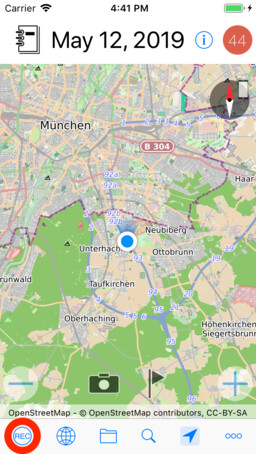
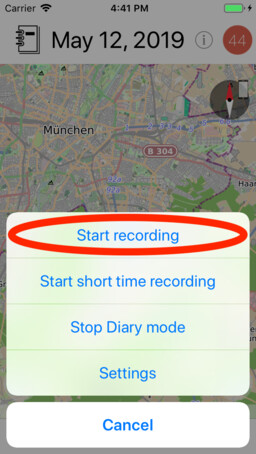
After start of a new recording, the cockpit view opens. You can close and reopen the cockpit view by tapping the corresponding button as shown in the following screenshot:
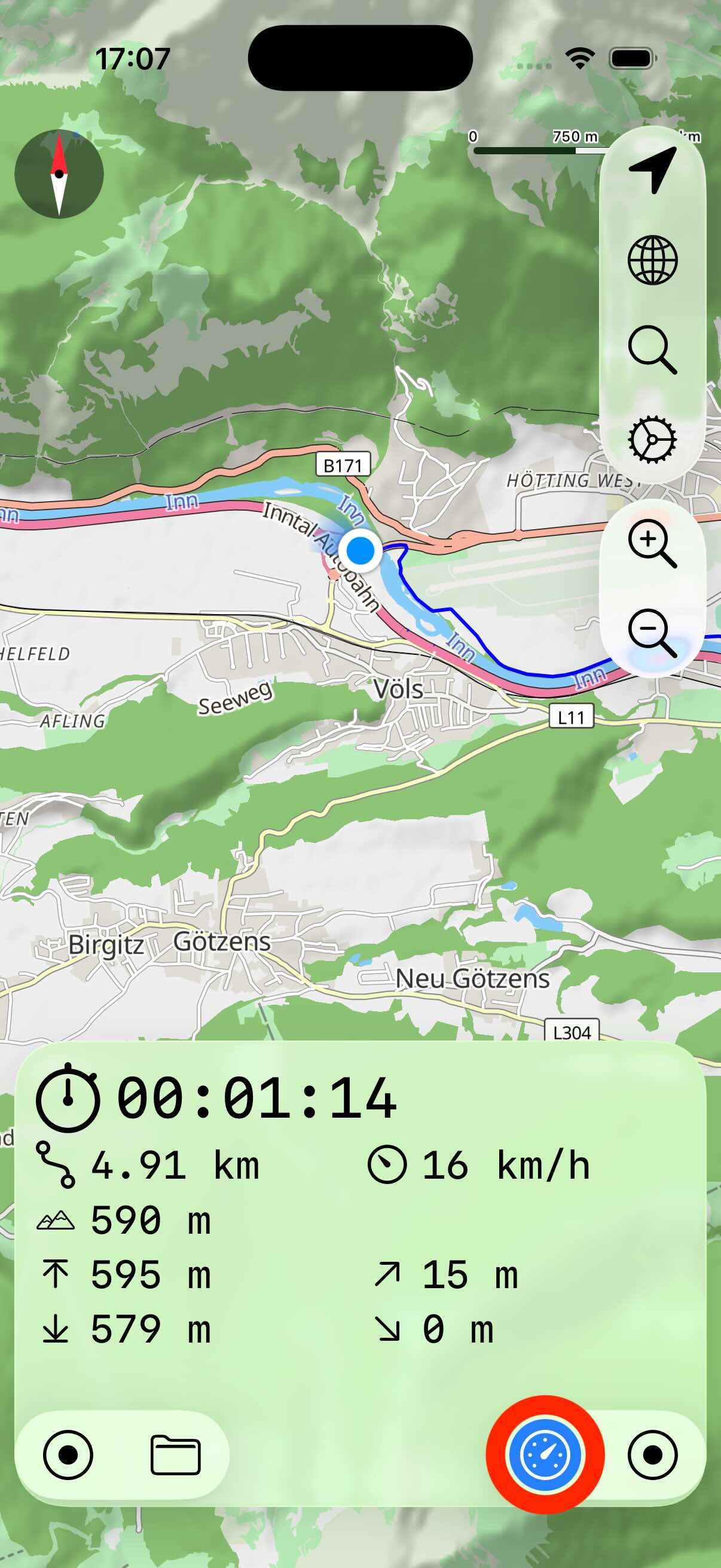
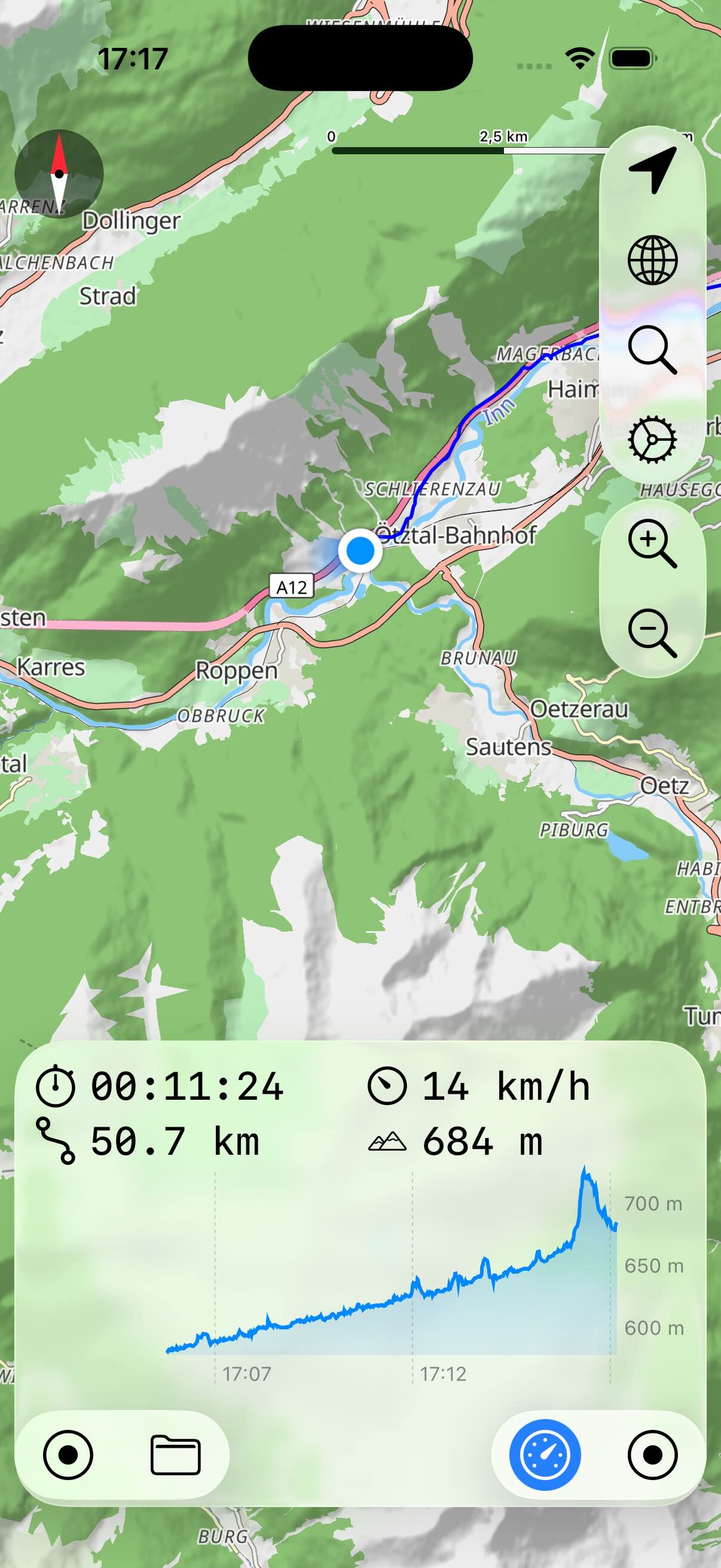
The cockpit view shows the current duration, length, speed, elevation, etc. Tap the cockpit view itself to toggle between various views, e.g. the elevation and and height profiles.
Next to the cockpit view button is a button to activate the details view of the current recording. This view shows even more details of the currently recorded track. You can change the size of the view by dragging the gray handle up or down.
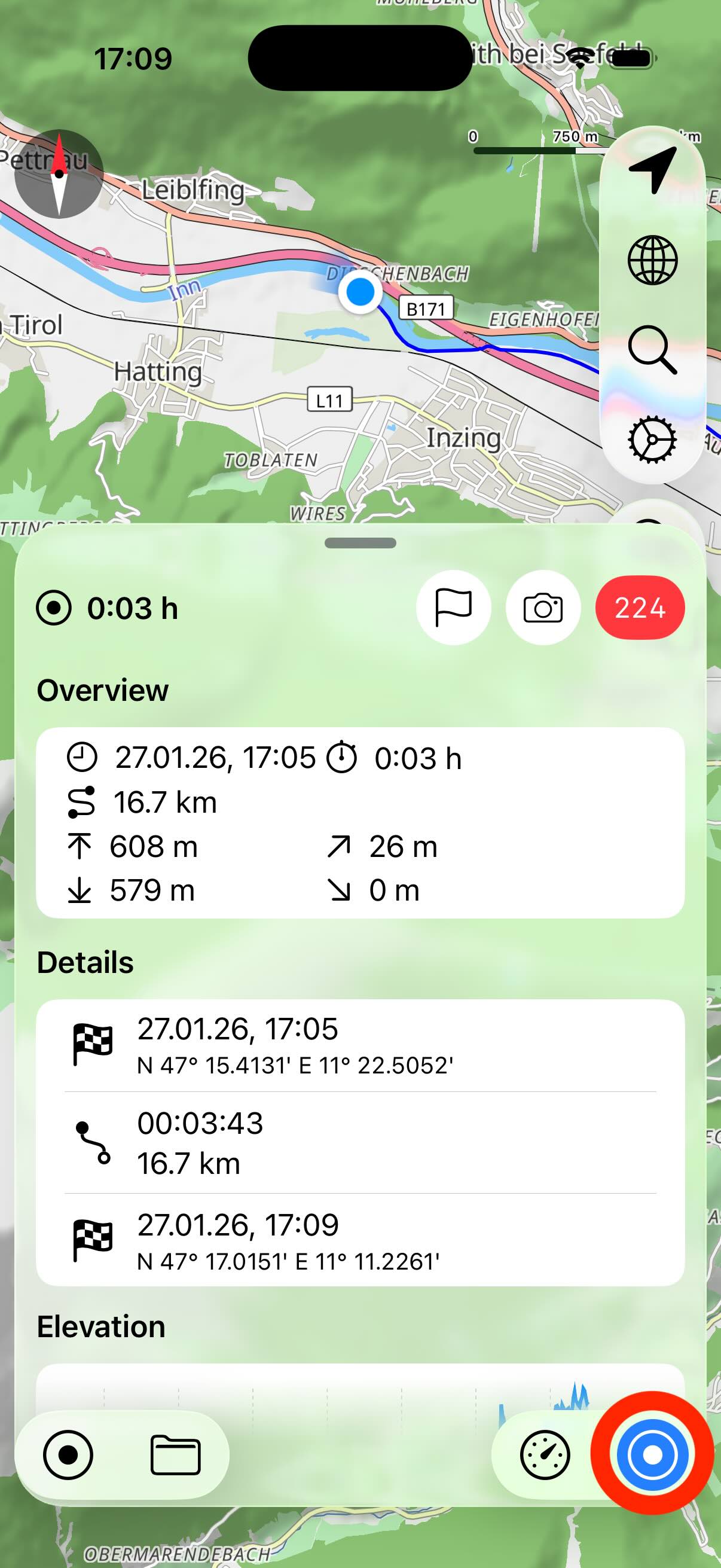
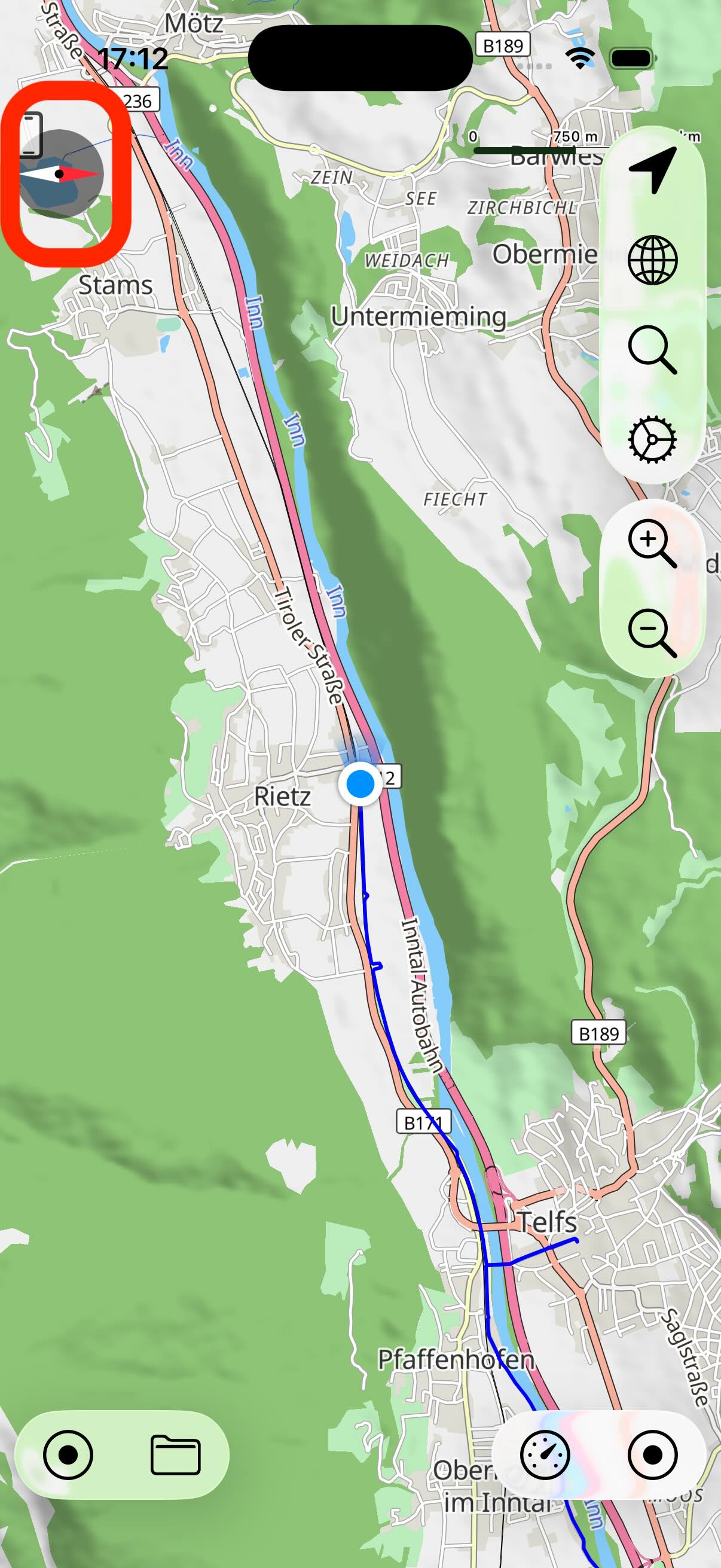
The current recording is displayed as a path on the map, the current position as a blue dot or pin. During a recording, you can move the map, zoom in and out. If the map should always be centered to the current position, activate the button with the location button in the top right corner. By default, the map is oriented North Up. But you can activate the compass in the settings. A compass will appear on the map. When you tap the compass, a small iPhone icon appears as overlay. Now the map automatically aligns to the direction of movement.
To stop recording, tap the button with the dot and select Stop Recording. The new track is then automatically stored in the track library.
Note: Track recording does not require an active internet connection even if no map is shown.
Track recording will continue in the background. If you start a recording and then turn off the iPhone or switch to another app, recording will continue anyway. But if you quit myTracks manually (using iOS app switcher), then the track recording will stop immediately.
Configure Recording
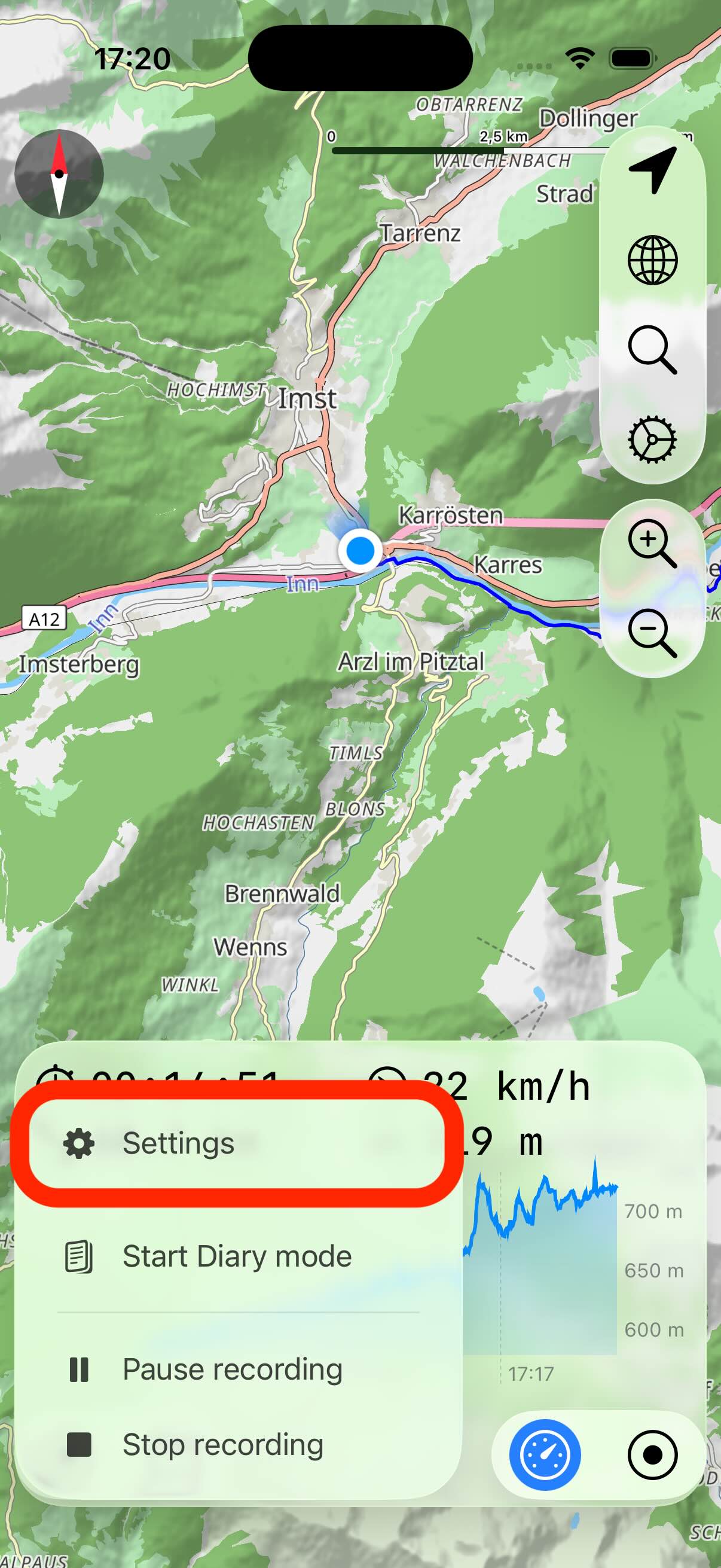
You can change settings for GPS recordings. Tap the button with the dot and then Settings:
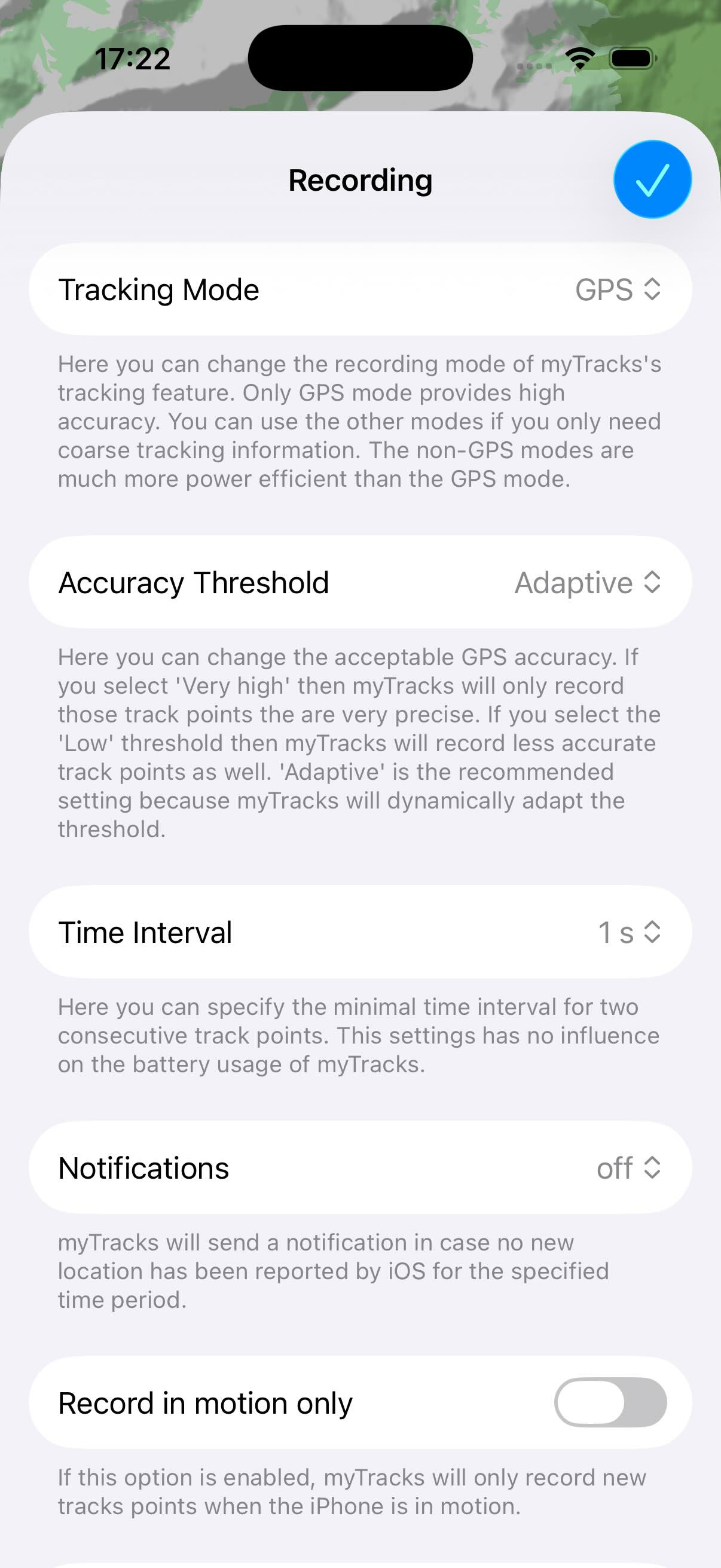
- Tracking mode: Here you can set the accuracy of the recording. For GPS recordings you have to choose GPS here. Otherwise the location is calculated using WiFi networks and mobile phone networks. These other type require significantly less battery power.
- Accuracy Threshold: When the iPhone receives GPS data, it also provides information about the accuracy of the GPS measurement. This threshold controls whether only track points with high precision are recorded. If you select Precise or Very Precise, fewer GPS positions tend to be recorded. If you want to record as many points as possible, then select the value Low here.
- Time Interval: This value allows you to control the minimum time interval between two GPS track points. If you only need one track point per minute for example, then you can set this here. This setting has no effect on the battery consumption, but only on the size of the recorded track.
- Notifications: myTracks can send an iPhone local notification if it has not received new GPS data for a certain period of time. This can happen if you spend too long in a building and no GPS data is available. But this can also happen if iOS has terminated myTracks due to too many other running apps. In this case, you must restart myTracks to continue recording.
- Record in motion only: New track points are only added to the track if the iPhone detects motion. If this setting is enabled and you only move slowly, it can happen that no new points are added.
- Smooth recording: If this option is enabled, myTracks averages the last few seconds for each track point recorded.
All these settings influence the regular recording only. They have no effect on the diary mode, nor on the recording with the Apple Watch.
Waypoints
During a recording you can add waypoints. Waypoints are special track points that have a name and are displayed as a pin on the map.
To create a new waypoint, open the details view of the current track recording and tap the tap on the flag icon:
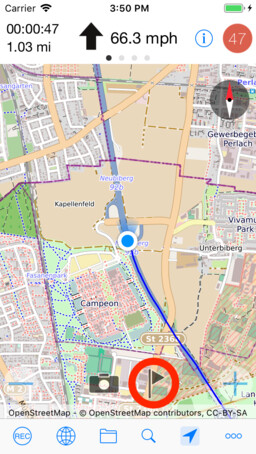
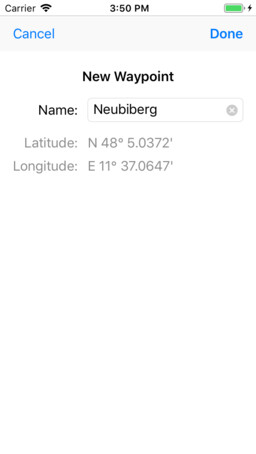
The last recorded track point is used as the waypoint. In the dialog new waypoint you can set the name of the waypoint. myTracks automatically tries to find a name for the location. However, this requires an internet connection. You can change the suggested name as you like. In addition you can specify a color and a symbol for the waypoint.
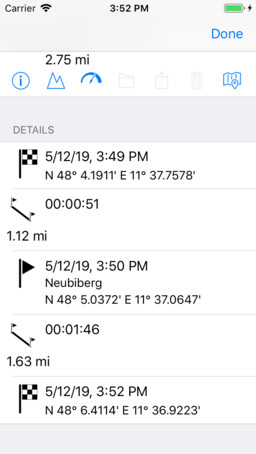
In the section overview, the waypoints are displayed as well.
Photos
During a recording, you can take photos, which are automatically assigned to the GPS track. You start a photo shoot by tapping the camera icon.
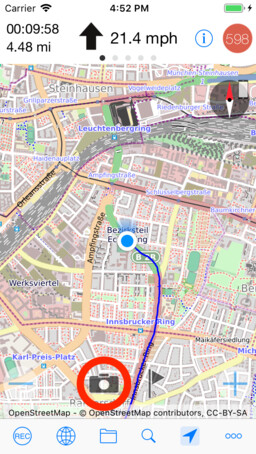
These photos are stored inside myTracks data along with the track. If you delete a track, its photos will also be deleted.
In the settings, you can specify whether a copy of the photo should be stored in the iOS photo library additionally.
The position of a photo is displayed on the map with a small camera icon.
Diary Mode
In addition to the regular GPS recording, there is the Diary Mode in myTracks. When this mode is activated, myTracks automatically creates an individual track for each day. In order to save battery power, the GPS chip is not used in this mode, but the position is determined by mobile phone and WiFi networks. myTracks uses an iOS feature named Significant Location Changes. Whenever iOS detects that the device has moved significantly, myTracks will be notified and adds a new track point.
While the diary mode is activated, you can start a regular recording at the same time. The diary mode has its own details view:
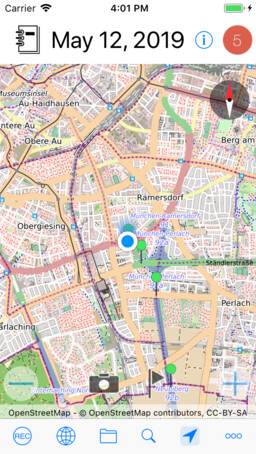
You can also add waypoints and photos to a diary recording in the same way as for the regular recording
Within the track library, the diary tracks are stored in their own folder. You can configure the name of the folder in the settings.