Organize Tracks
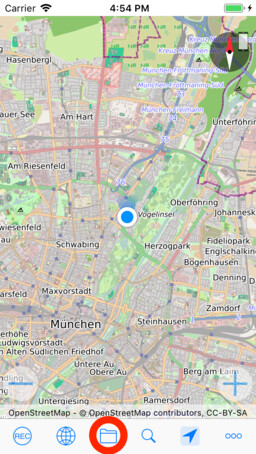
The tracks recorded by myTracks are managed within the track library. The library consists of the tracks and arbitrarily nested folders. You open the library by tapping the symbol with the Folder.
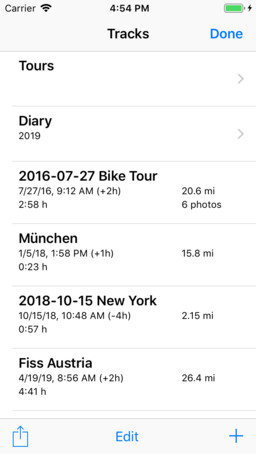
Now the tracks and folders are listed. If you tap on a track, it will be displayed on the map. When you tap a folder, its content is displayed.
Open Tracks
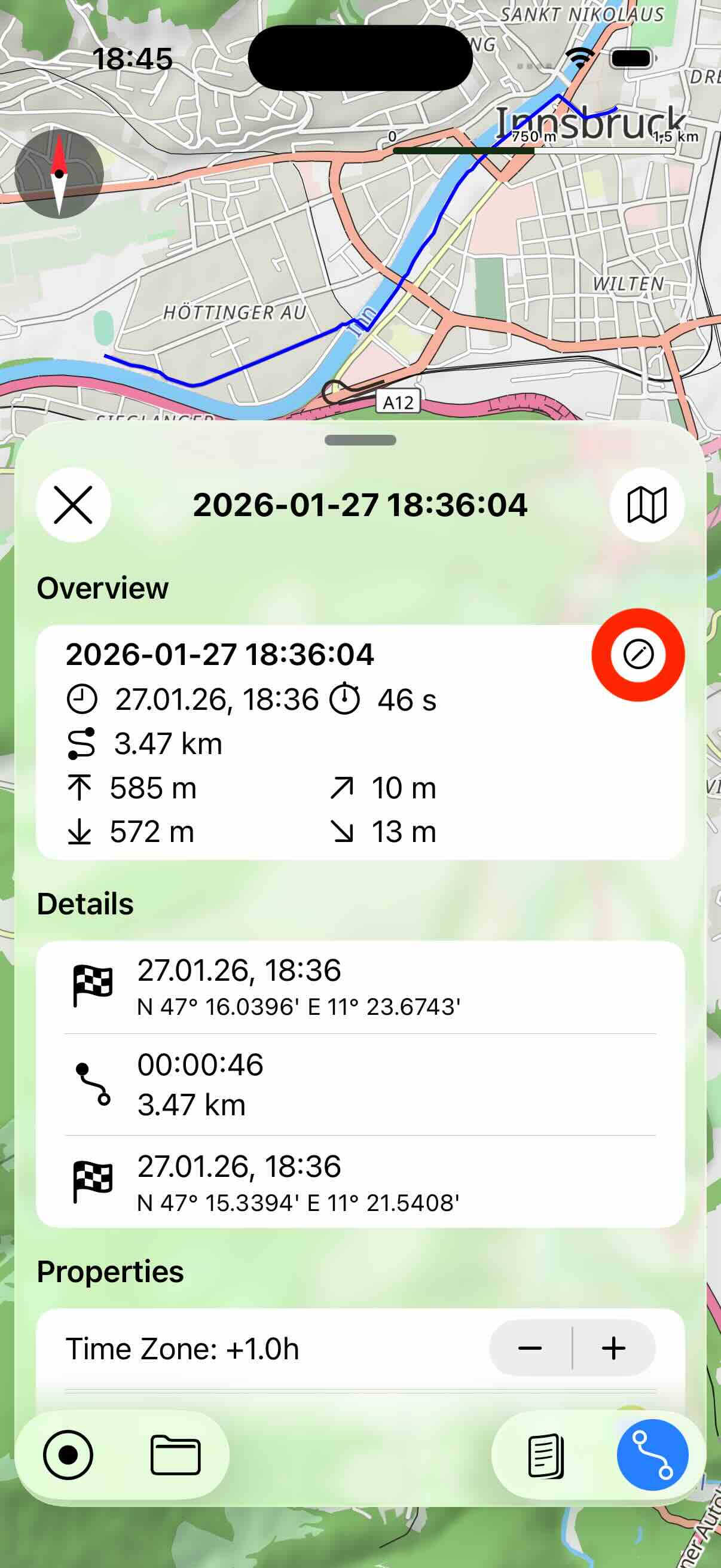
If you tap a track in the track library, it will be displayed on the map. In addition the track details view will be opened.
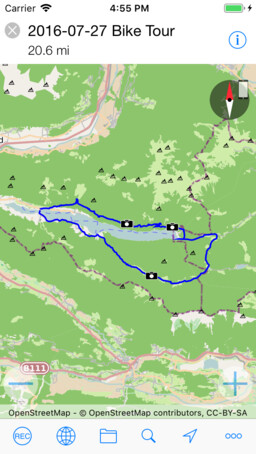
You hide and unhide the track details view by tapping the button marked in the screenshot above. To close the track (unhide from map) tap the button with the X in the upper left corner of the details view.
If you open another track from the track library, a previously opened track will also be closed.
You can scroll through the track details view to get more details such as the elevation and speed profile.
Editing Track Properties
The individual track points of a track cannot be edited with myTracks for iOS. You can do this with myTracks for macOS, for example. But you can change some properties, such as the name or the color. First open the track. Then open the track details view.
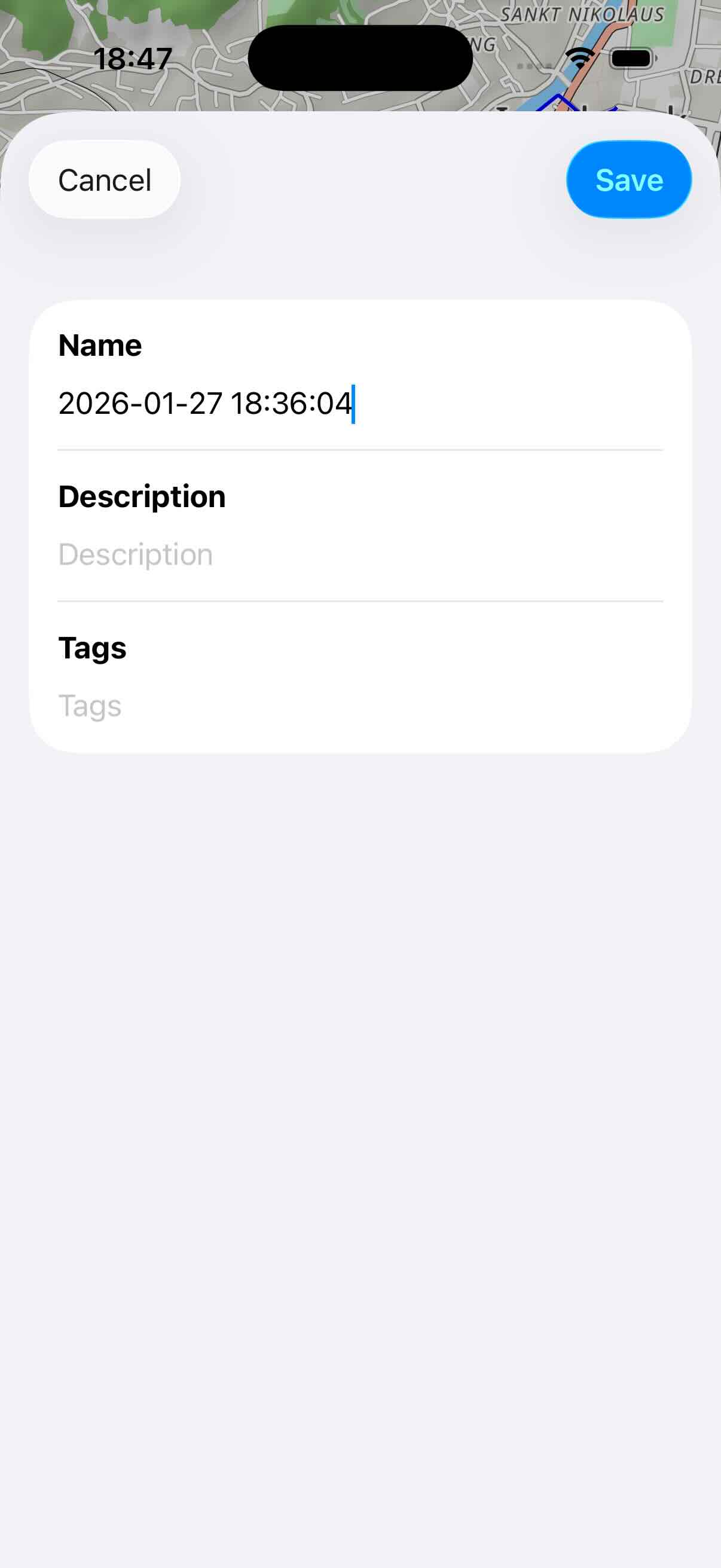
To change the name, description or tags of a track tap the button with the pencil:
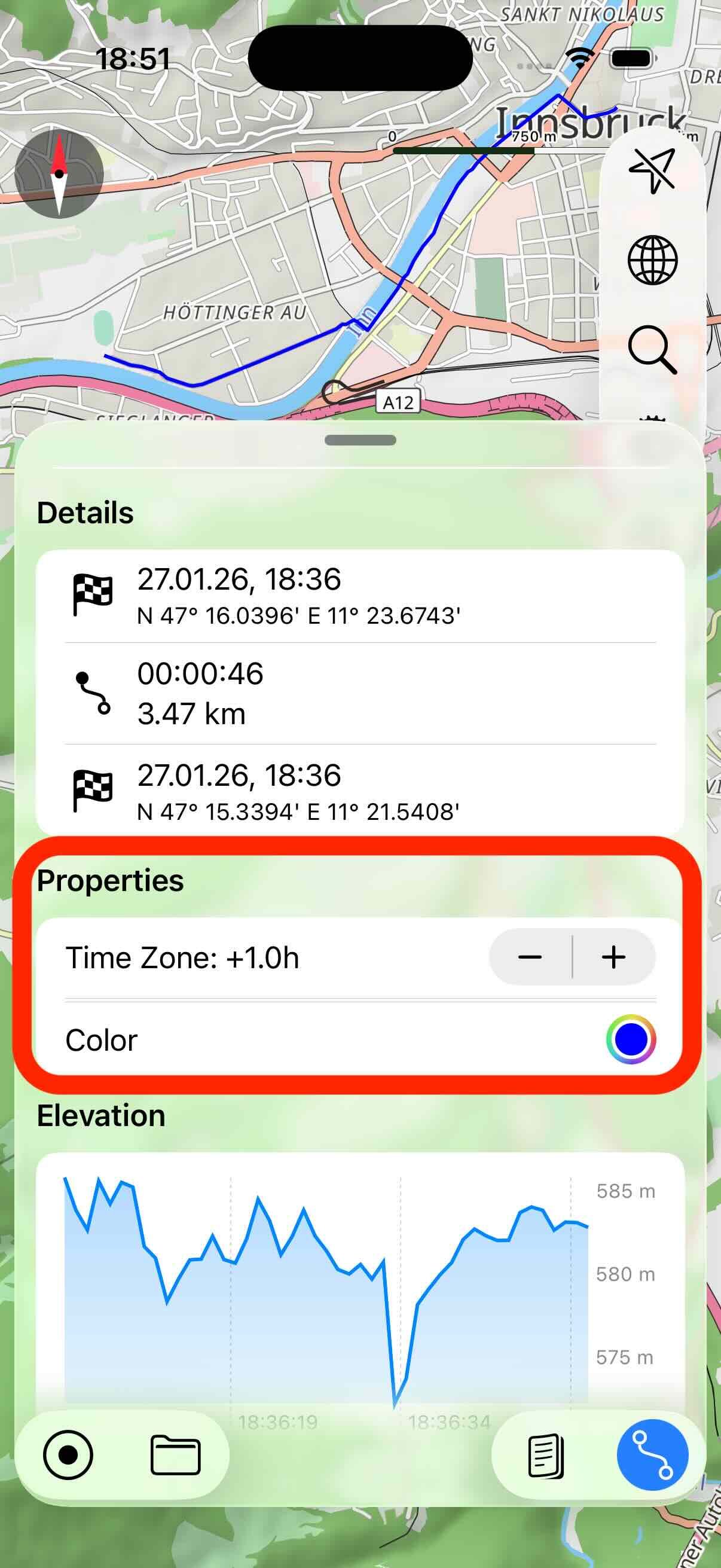
On the track details view there is a properties section where you can configure the color and the time zone of the track.
Organize Tracks in Folder
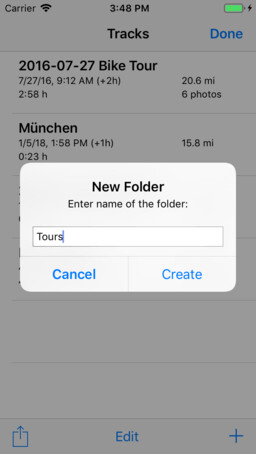
You can create new folders and sub-folders in the track library. To do this, open the track library or any other folder. Then tap the folder button in the upper right corner to create a new folder.
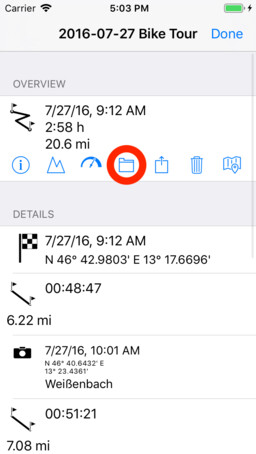
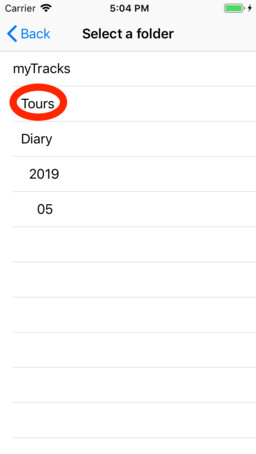
There are two ways how to move tracks to a folder. If you already have a track opened, active the details view of the track and scroll to the end of the view. There you find a folder button. Next, select the target folder and tap the folder button in the upper right corner to finally move the track.
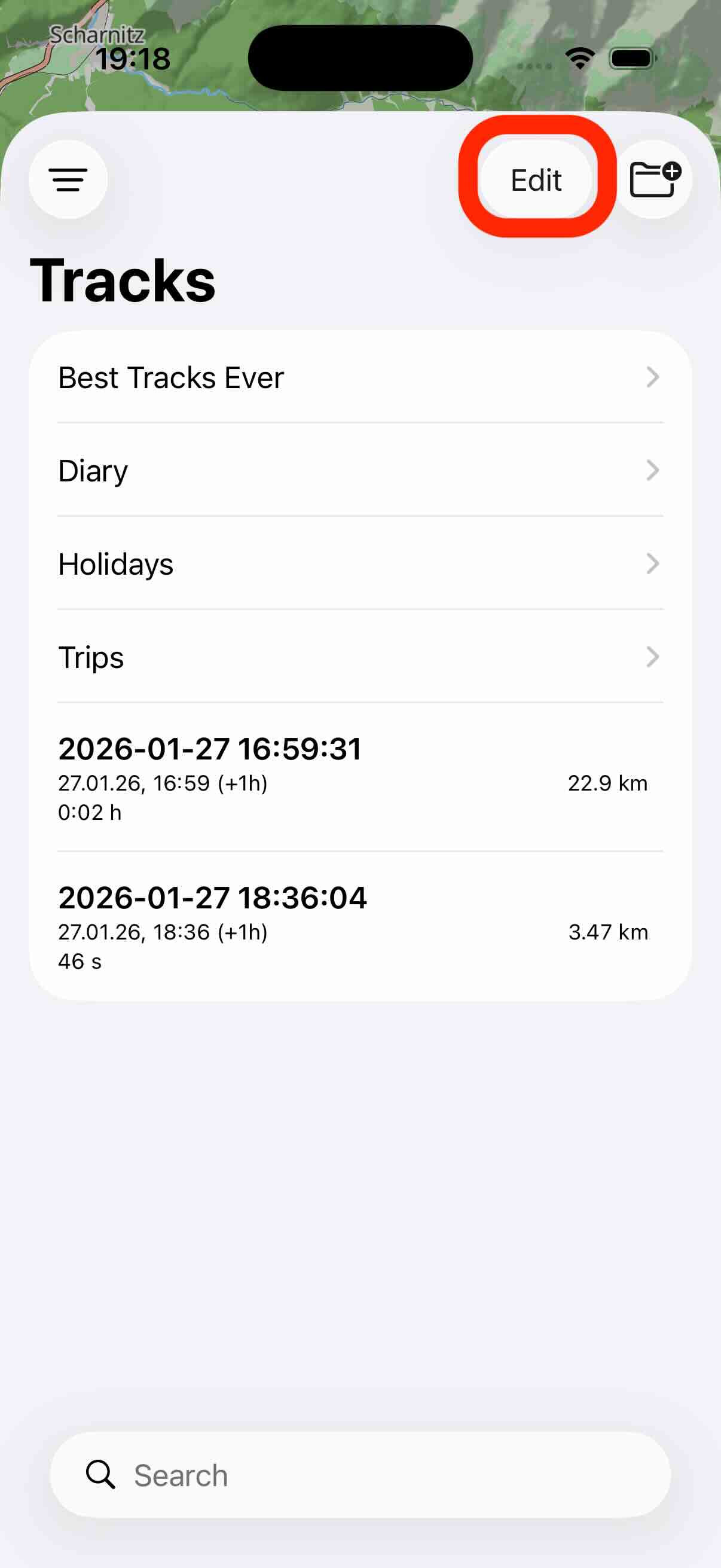
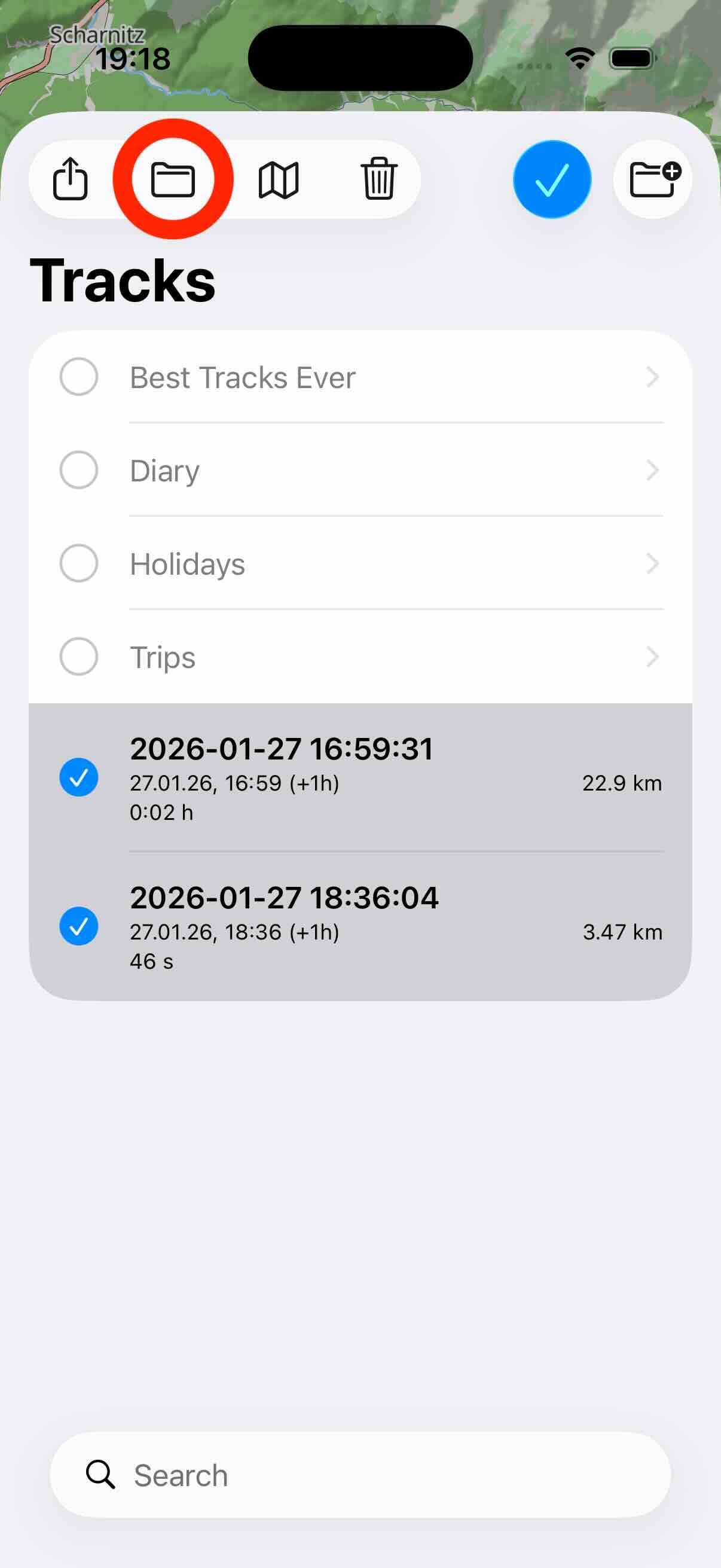
Using the second workflow you can move one or multiple tracks to a folder. Open the track library or a folder, enter the edit mode, select one or more tracks and finally tap the folder button.
Sorting
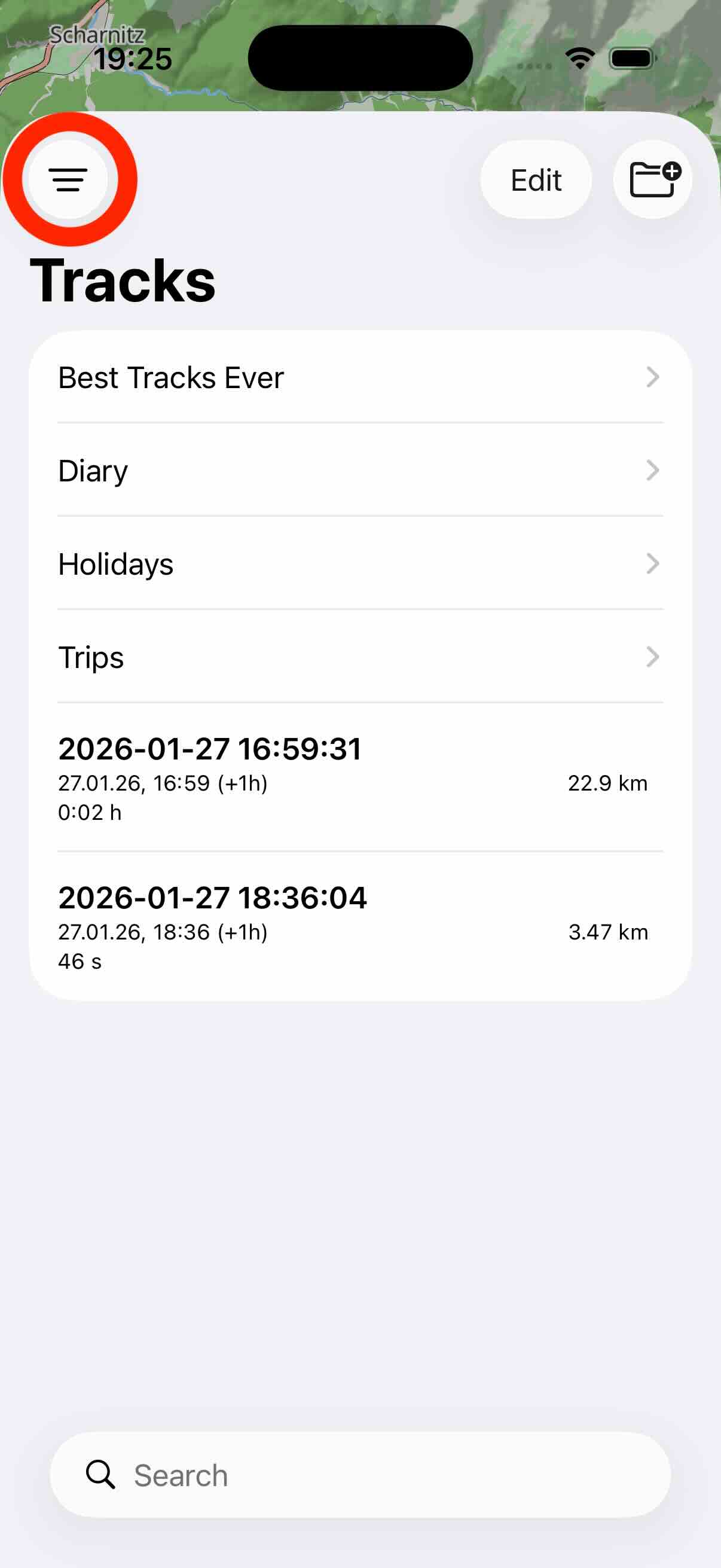
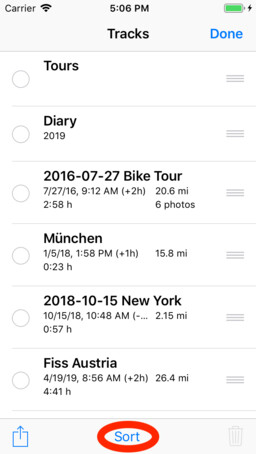
The list of GPS tracks can be sorted according to different criteria. First open the track library or any folder. Then tap the filter button in the upper left corner. Then you can specify the criterion according to which the tracks are to be sorted. This is a global setting and it is used for all folders.
Delete Tracks
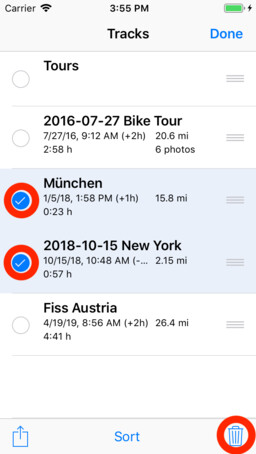
To delete tracks, first enter the edit mode, select the track(s) you want to delete and then tap the trash button.