Export Tracks
The GPS tracks can be exported as GPX or KML files. Thus, you can send tracks by e-mail or save them in the Files app.
There are different approaches to export one or more tracks. If you have opened a track and want to export it, open the details view, scroll to the bottom of the view and tap the share button.
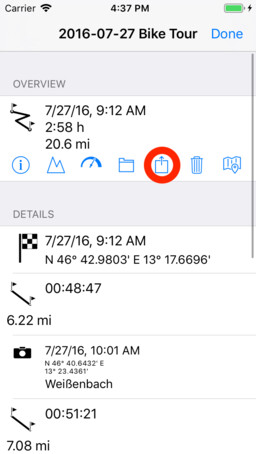
An export for one or more tracks can also be performed out of the track list. To do this, activate the edit mode by tapping Edit. Then select one or more tracks and tap on the export icon to export.
You can also export all tracks of a folder. To do this, open the corresponding folder in the track list and then tap the export icon.
Export Dialog
After tapping the export symbol a new dialog will appear where you can configure the export:
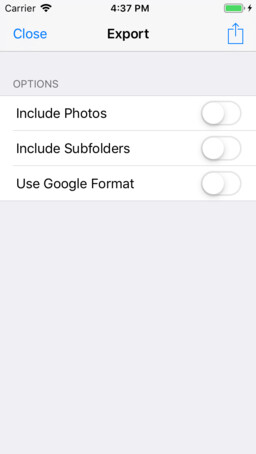
- Include Photos: If this option is activated myTracks will not only export the tracks but also the contained photos.
- Include Subfolders: If this option is activated myTracks will also export the contents of selected folders.
- Use Google Format (KML): As a default myTracks uses the GPX file format to export GPS tracks. GPX is a file format that was developed for storing GPS information and therefore it can be processed by nearly every application that handles GPS data. If ever possible you should use GPX files. As an alternative you can use the KML file format developed by Google. But KML is not really a standard for GPS data and therefore every application uses a different dialect of KML and some applications may not understand the KML written by another application.
myTracks will export a track as a single GPX or KML file. In case you export more than one track myTracks will create a ZIP file containing all the tracks as individual files.
Both GPX and KML files cannot contain photos. Therefore photos have to placed next to these files. In case the Include Photos option is activated myTracks will always create a ZIP file and adds the photos next to the GPX files. In case Use Google Format is activated myTracks will create a KMZ instead of a KML file. From a technical point of view a KMZ file is a ZIP file that contains a KML and additional files.
Perform the Export
After configuring the export you finally have to perform the export by tapping the export symbol again. Afterwards the iOS dialog for sharing files will appear.
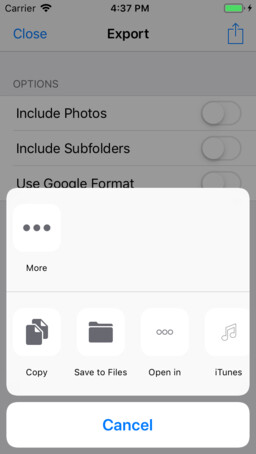
The sharing dialog shows various options depending on the installed apps. In the screenshot above you see the button to save the tracks in the Files app.