Apple Watch
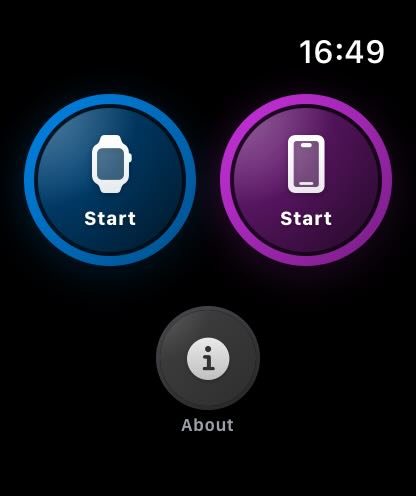
If you own an Apple Watch, you can install myTracks directly on it. On the main screen, you'll see two prominent buttons: the left button lets you start a recording on the Apple Watch itself, while the right button starts a recording on your iPhone.
When you record a track on the Apple Watch, the watch's built-in GPS chip is used. No connection to the iPhone is required during recording, so you can leave your iPhone behind and move freely with just your Apple Watch. Once you finish recording, the track is automatically synchronized with myTracks on your iPhone. The next time you open myTracks on your iPhone, the GPS track will appear in your track library after a short delay. If iCloud Sync is enabled, the track will then be uploaded to iCloud from your iPhone. Note that the Apple Watch cannot sync GPS tracks directly to iCloud.
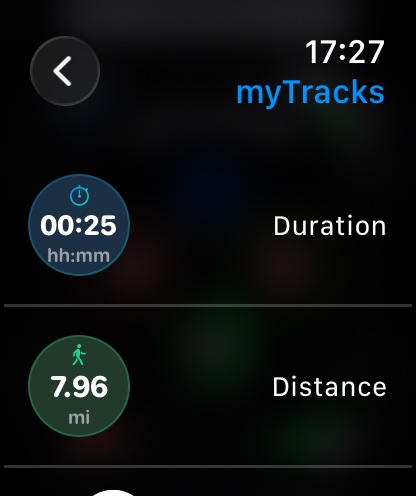
Once you begin recording on your Apple Watch, the main recording screen appears, displaying the duration, distance, and current speed of your track:
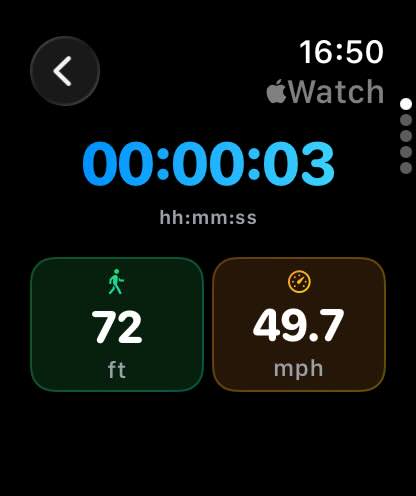
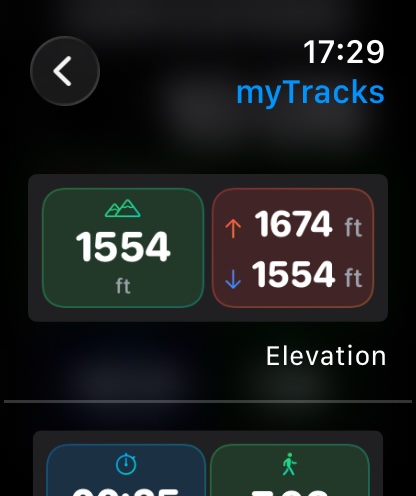
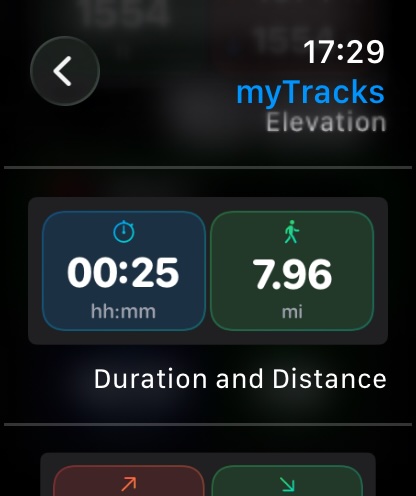
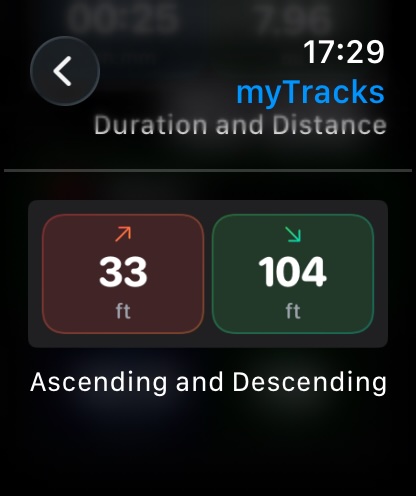
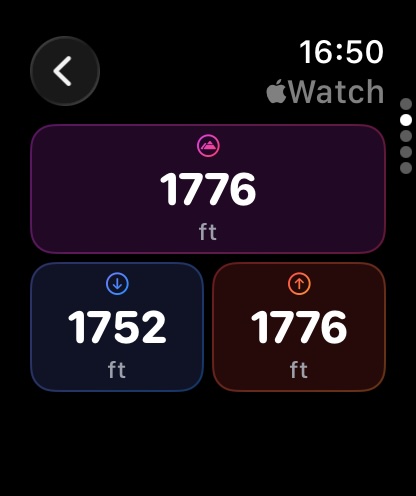
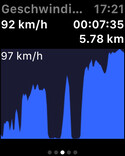
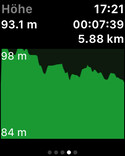
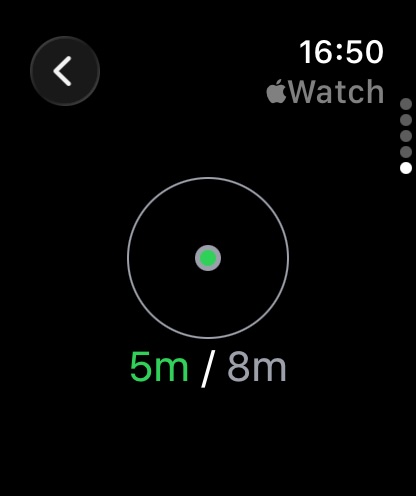
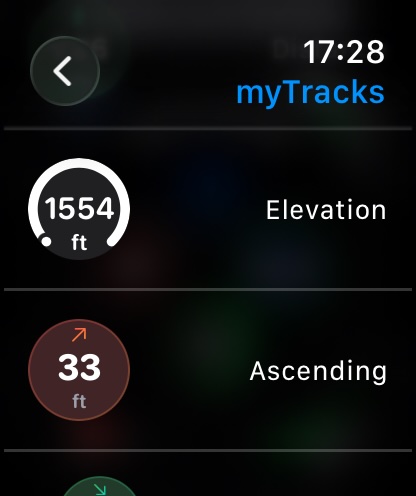
You can access additional views by swiping up or using the Digital Crown. The second view displays elevation information, the third shows the speed profile, and the fourth presents the elevation profile. The final view provides GPS details. The first value indicates the accuracy of the latest GPS point (5m in this example), while the second value (8m in this example) represents the accuracy threshold. If the actual accuracy exceeds the threshold, track points are not recorded and the information is shown in red. If the data meets the accuracy requirement, it is displayed in green.
You can access additional features via the menu, which opens by tapping on the Apple Watch display:
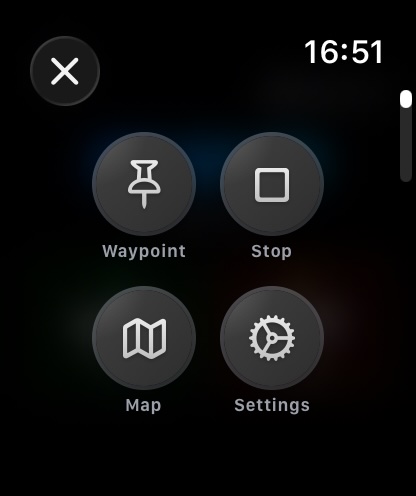
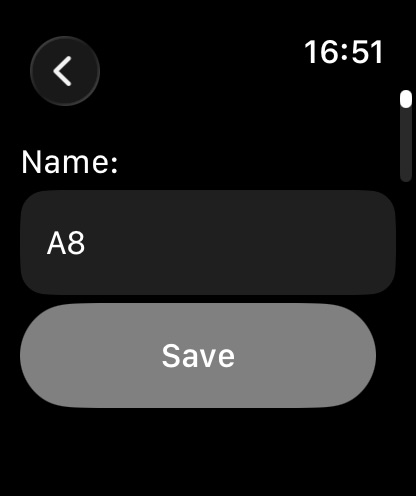
You can create a new waypoint by tapping the Waypoint button. In the dialog that appears, you can enter a name for the waypoint, although myTracks will suggest one for you automatically.
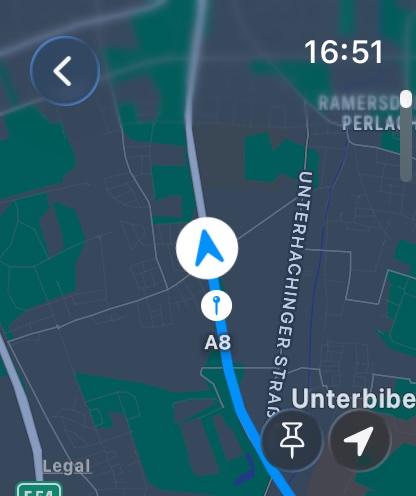
In the menu, you can open a map by tapping the Map button. Apple Maps is always used for this feature. OpenStreetMap is not available here. The current recording is also displayed on the map.
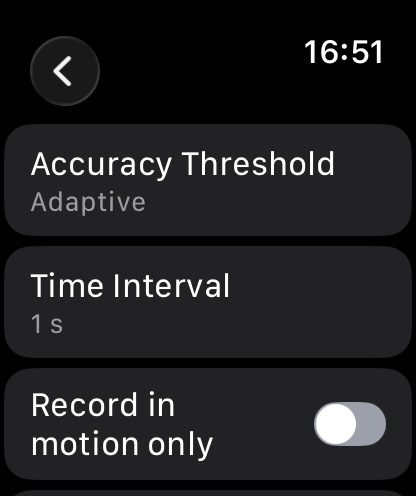
You can configure the recording using the Settings button, in much the same way as on the iPhone.
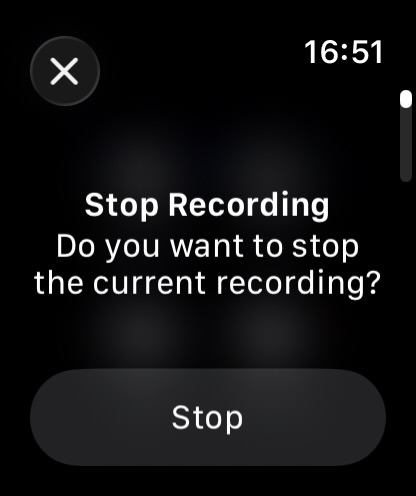
You can stop the current recording by tapping the Stop button.
Complications
myTracks offers a variety of complications for the Apple Watch. The content of these complications always relates to the current recording on your Apple Watch.
Here is an overview of the circular complications:
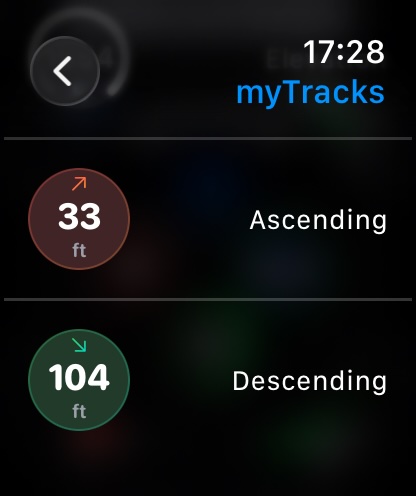
These are the Corner complications:
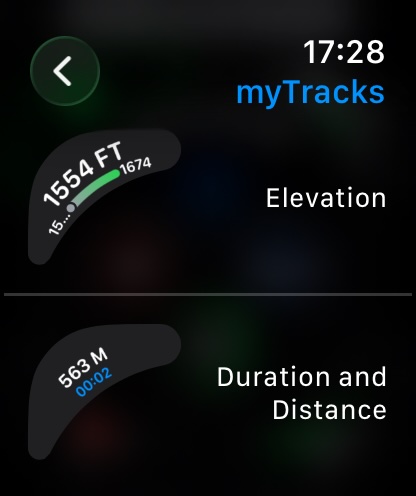
And these are the Rectangular complications: