iCloud
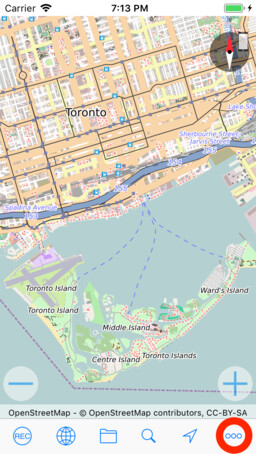
myTracks can sync tracks from the track library in iCloud. You can enable iCloud support in the settings of myTracks. Then all local GPS tracks are automatically copied to iCloud. These are then available in myTracks on your other devices.
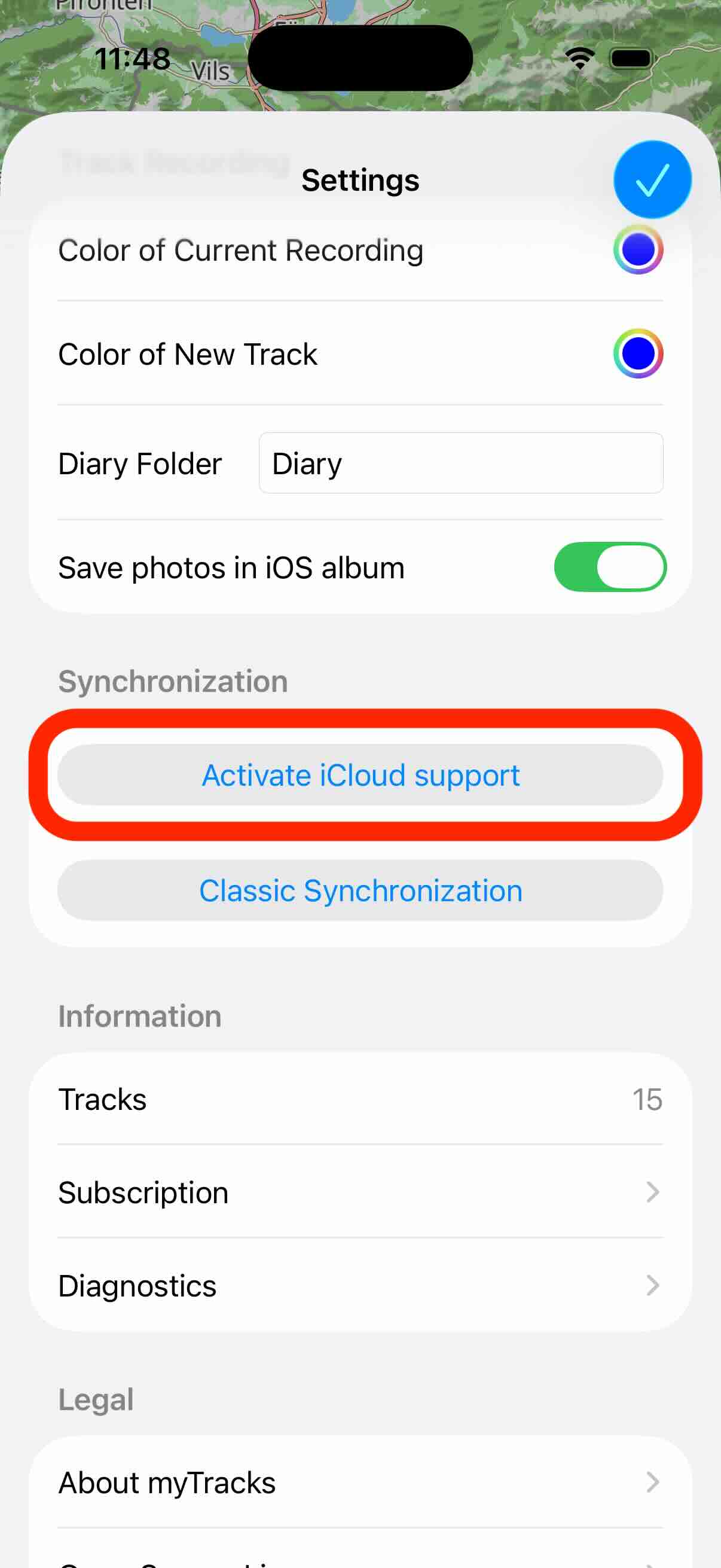

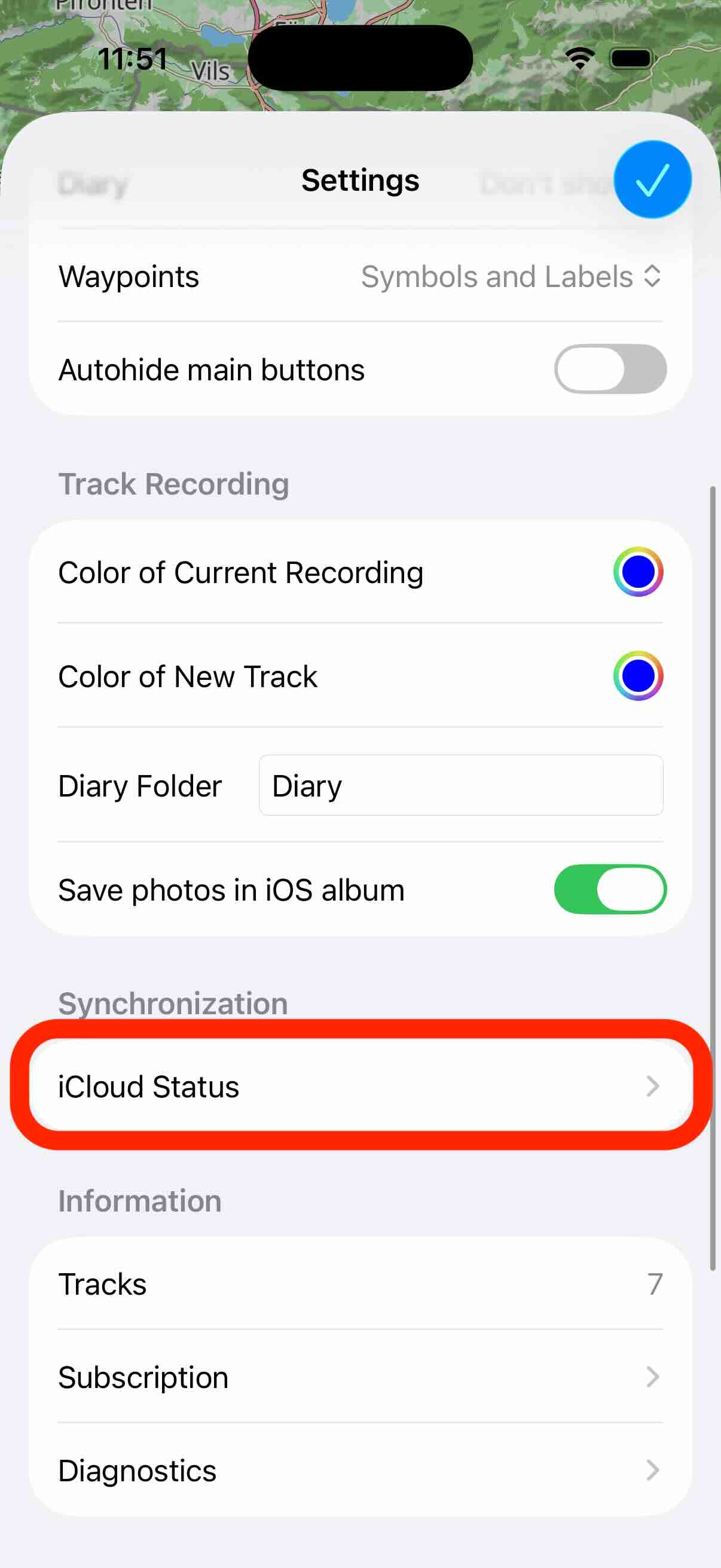
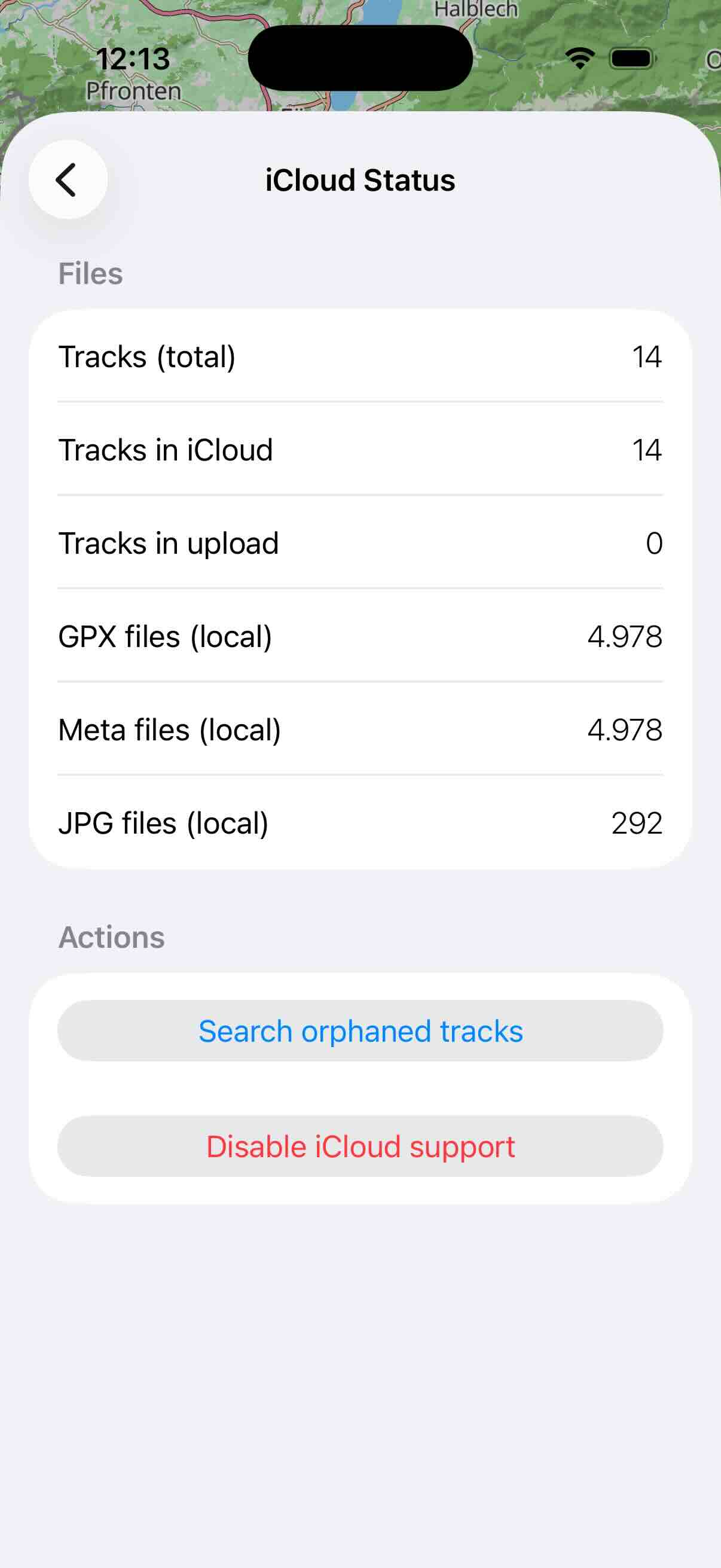
After iCloud synchronization has been activated the entry in set settings view changes. Use this entry to get more insights into the synchronized data:
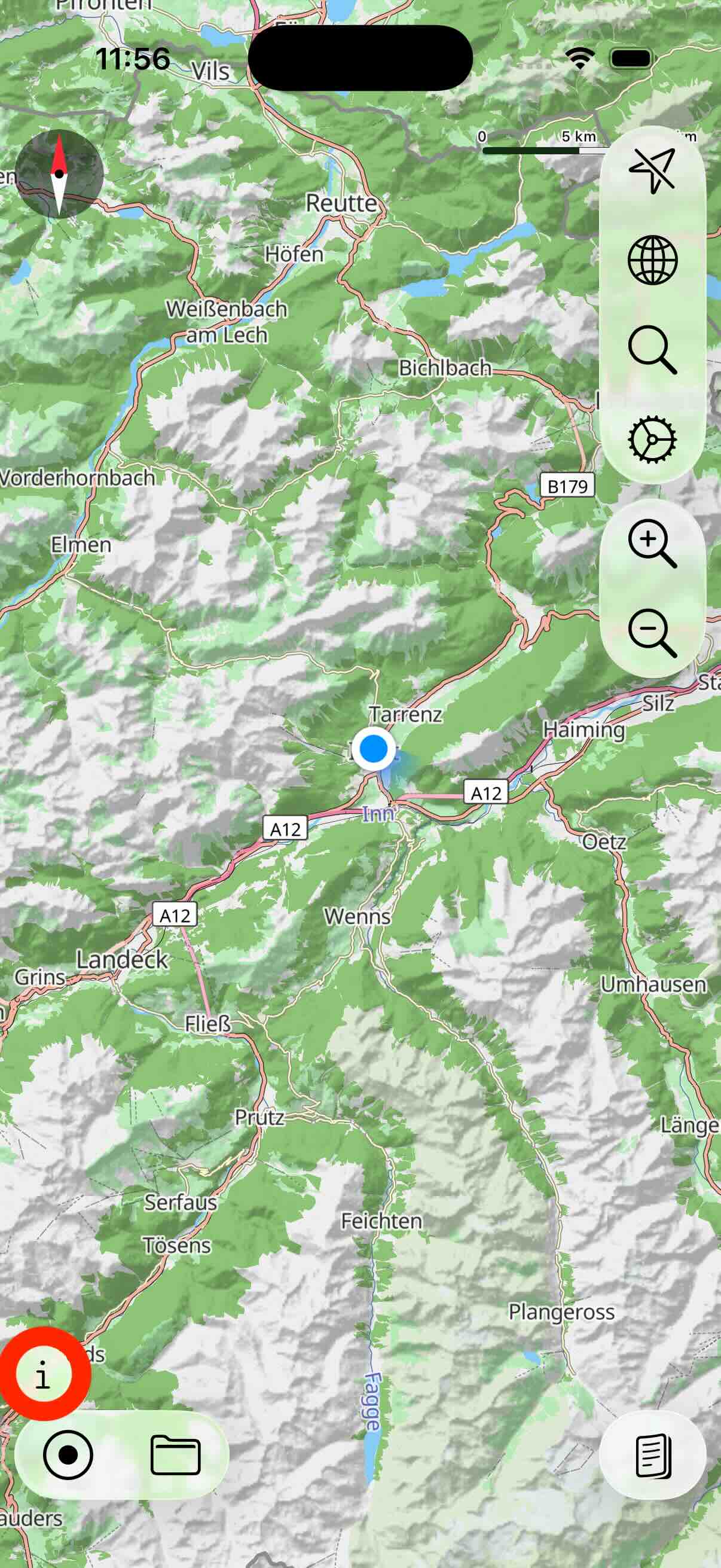
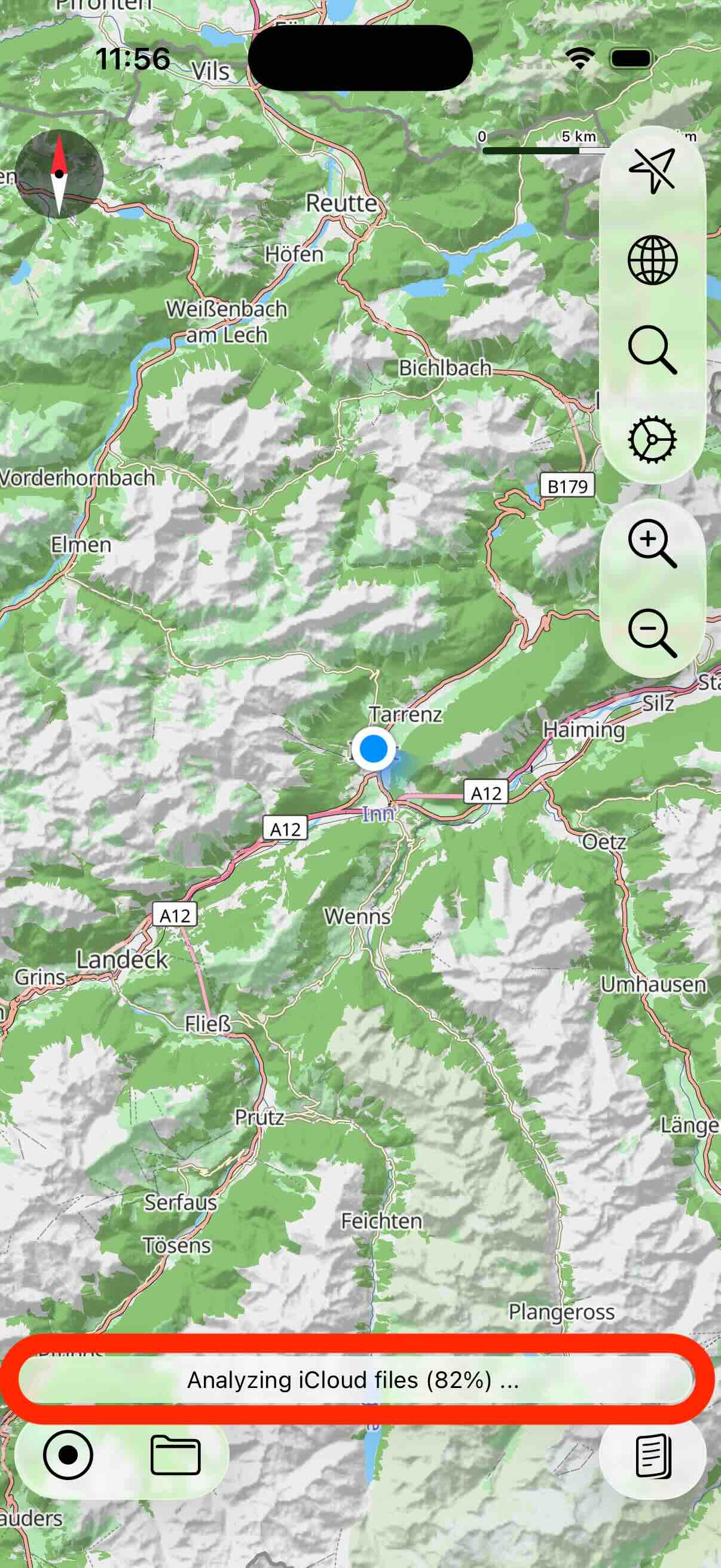
On the main view you find a small button with an i. While the iCloud synchronization is actually synchronizing data you get more information when you tap the button:
Any tracks you record from now on are automatically copied to iCloud at the end of the recording, making them available directly on the other devices.
If you have a Mac and also work with myTracks there, the tracks will also be synced via the iCloud there, if iCloud synchronization is enabled.
If iCloud Sync is on and you delete a track, the track will be deleted on all devices. Since there is no backup function for iCloud Drive data, a track is permanently deleted in this case. If you rename, edit, or move a track, that information also syncs between devices.
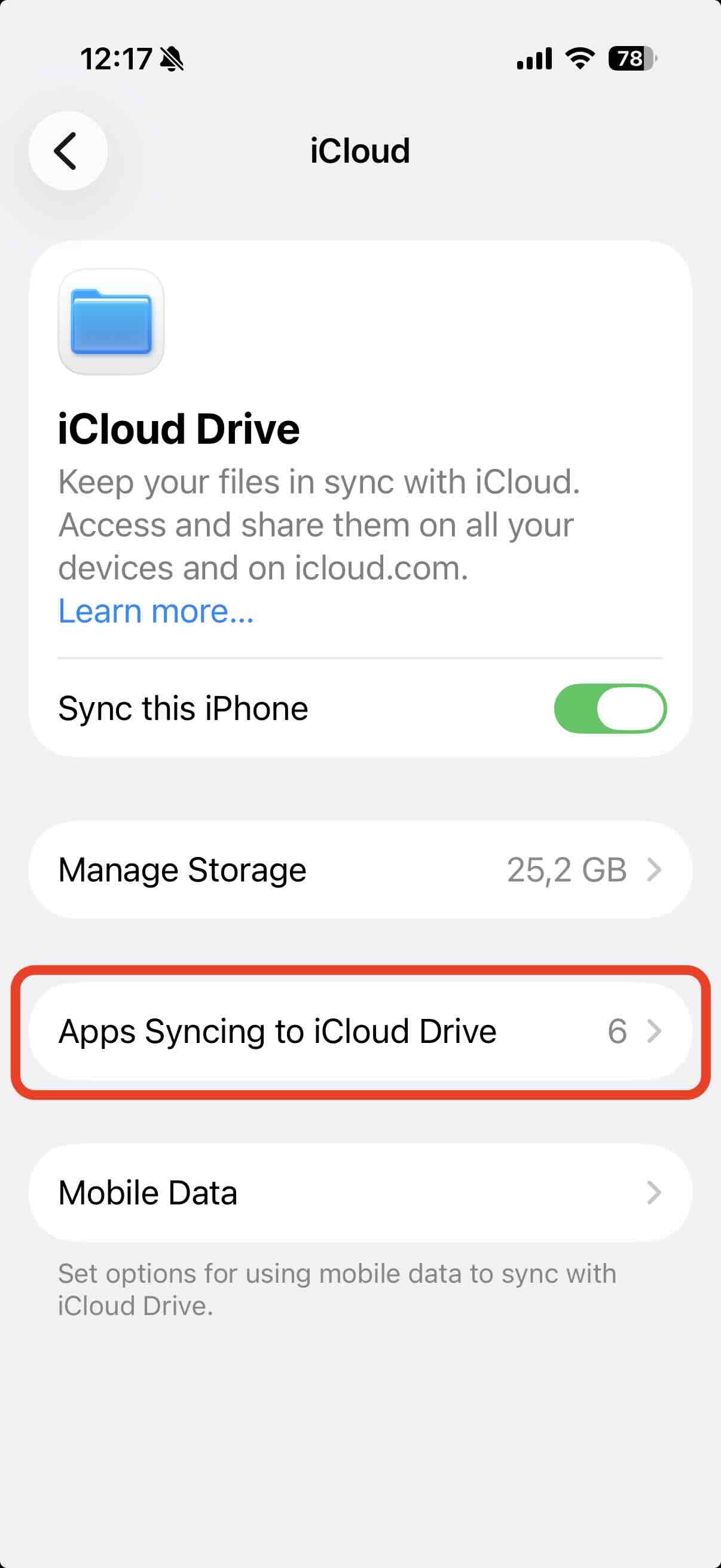
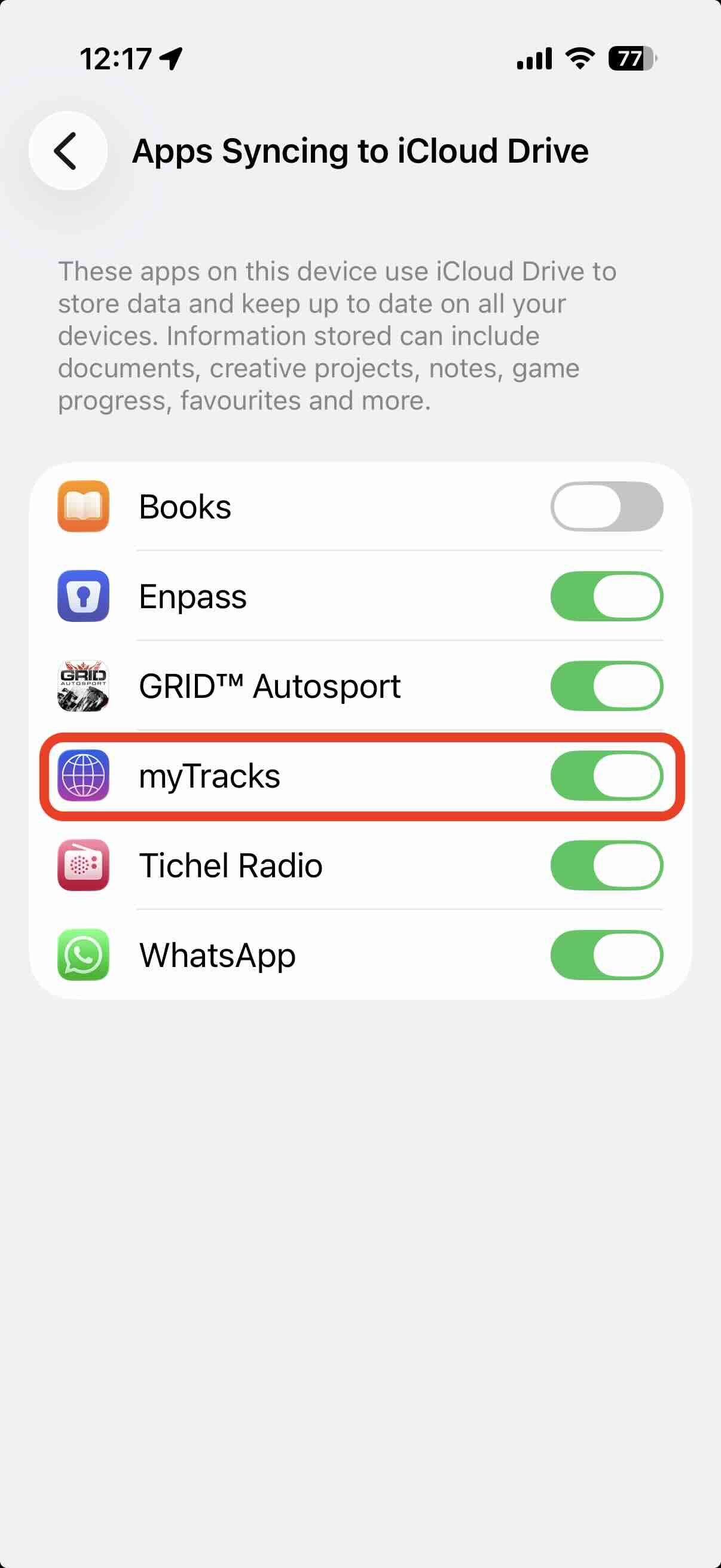
Technically, myTracks uses the iCloud Drive feature for iCloud support. This also means that you need to have this feature enabled in iOS settings. Otherwise, activation of iCloud fails in myTracks. However, the tracks do not appear as individual files in the iCloud Drive app on the iPhone or in the iCloud Drive folders on the Mac. This has been deliberately realized because myTracks itself manages these files. If you need the files in other apps then you can use the export function of myTracks.
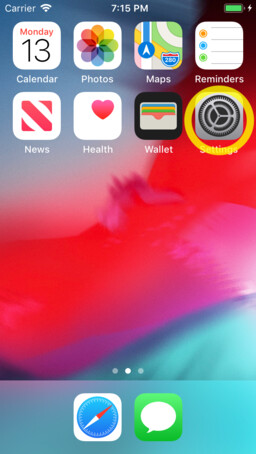
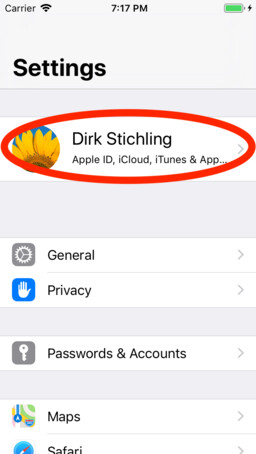
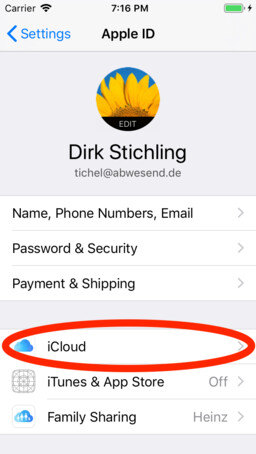
See the following screenshots for checking the iCloud setting of myTracks within the iOS settings app: